Seconds

for a calendar change to appear on the room screen outside the door — no manual update needed

Look DS calendar sync capability

$0

cost per schedule update — no printing paper room schedules, no ink, no daily admin distribution

vs. traditional printed room schedules

0

double bookings — screens stay perfectly in sync with your central booking system at all times

single source of truth for all rooms

1 → ∞

rooms managed from a single cloud dashboard — scale from a pilot room to an entire global campus

Look DS platform capability

What is meeting room digital signage?

Automated scheduling on screens outside every door

Digital signage for meeting rooms usually consists of small screens mounted outside each room, often paired with larger displays inside. A platform like Look CMS acts as your central hub, pulling schedule data from digital calendars like Microsoft Outlook or Google Workspace. Any change made in a digital calendar updates on the screen outside the room in seconds.

This setup is a strong fit for corporate offices, growing businesses, and shared workspaces

where meeting areas are in high demand. It moves your team away from slow, manual updates to an automated system. Whether you use touchscreens or basic displays, the goal is simple: provide clear information at a glance so your team can navigate the office easily.

Digital vs. Traditional room management

Traditional approach

Paper schedules outdated instantly

Walking around checking empty rooms

Double bookings and clashes

Ghost meetings block real availability

IT staff waste time on manual updates

No data on actual room usage

Look DS

Green checkmark inside a black circle.

Calendar sync updates screens in seconds

Green checkmark inside a black circle.

Color status visible from down the hall

Green checkmark inside a black circle.

Single source of truth stops conflicts

Green checkmark inside a black circle.

Auto-release frees unconfirmed rooms

Green checkmark inside a black circle.

Non-technical staff run it automatically

Green checkmark inside a black circle.

Analytics prove real estate ROI

Green shield icon with a white check mark on a black rounded square background representing security or verification.

3 core components

1

Hardware

Small screens mounted outside each room (touchscreen or e-ink) plus larger in-room panels. Touchscreen signs are usually tablet-sized and powered by Power over Ethernet (PoE) for a clean, single-cable install.

2

Software (CMS)

The Look CMS connects to your Microsoft 365 or Google Workspace calendar. Two-way sync means any booking change — made at a desk or on the screen — updates everywhere instantly. Manage every display from one cloud dashboard.

3

Content

Live room schedules, booking status indicators, company announcements when rooms are empty, wayfinding maps, and emergency alerts — all scheduled automatically and updated in real time as your office changes.

Benefits

Six ways meeting room signage optimizes your workplace

Improves Space Utilization
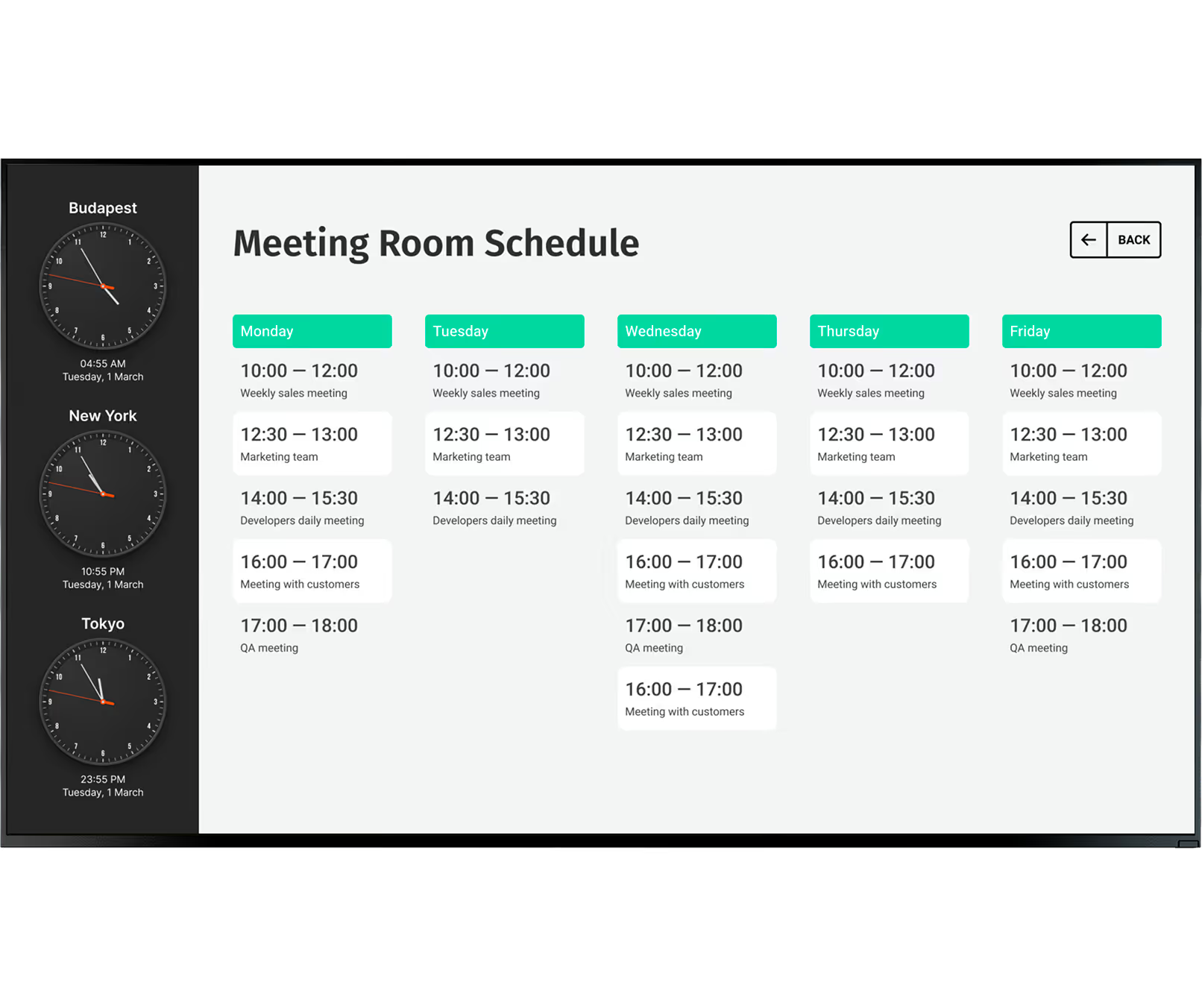
Playback Analytics and dashboard data help you spot which rooms are booked most, which are rarely used, and which time slots stay empty. With this data, you can prove ROI on your real estate and adjust room layouts to fit actual needs. Live updates return canceled rooms to the booking pool instantly.
Meeting room schedule with weekly sales, marketing, developers, customer, and QA meetings from Monday to Friday.
Switch icon

Prevents Double Bookings

Double bookings slow teams down and create awkward hallway conversations. Digital signage stops this by staying perfectly in sync with your central booking system. If the meeting host does not check in on time, the room is automatically freed up for someone else — keeping the schedule accurate and meetings on time.
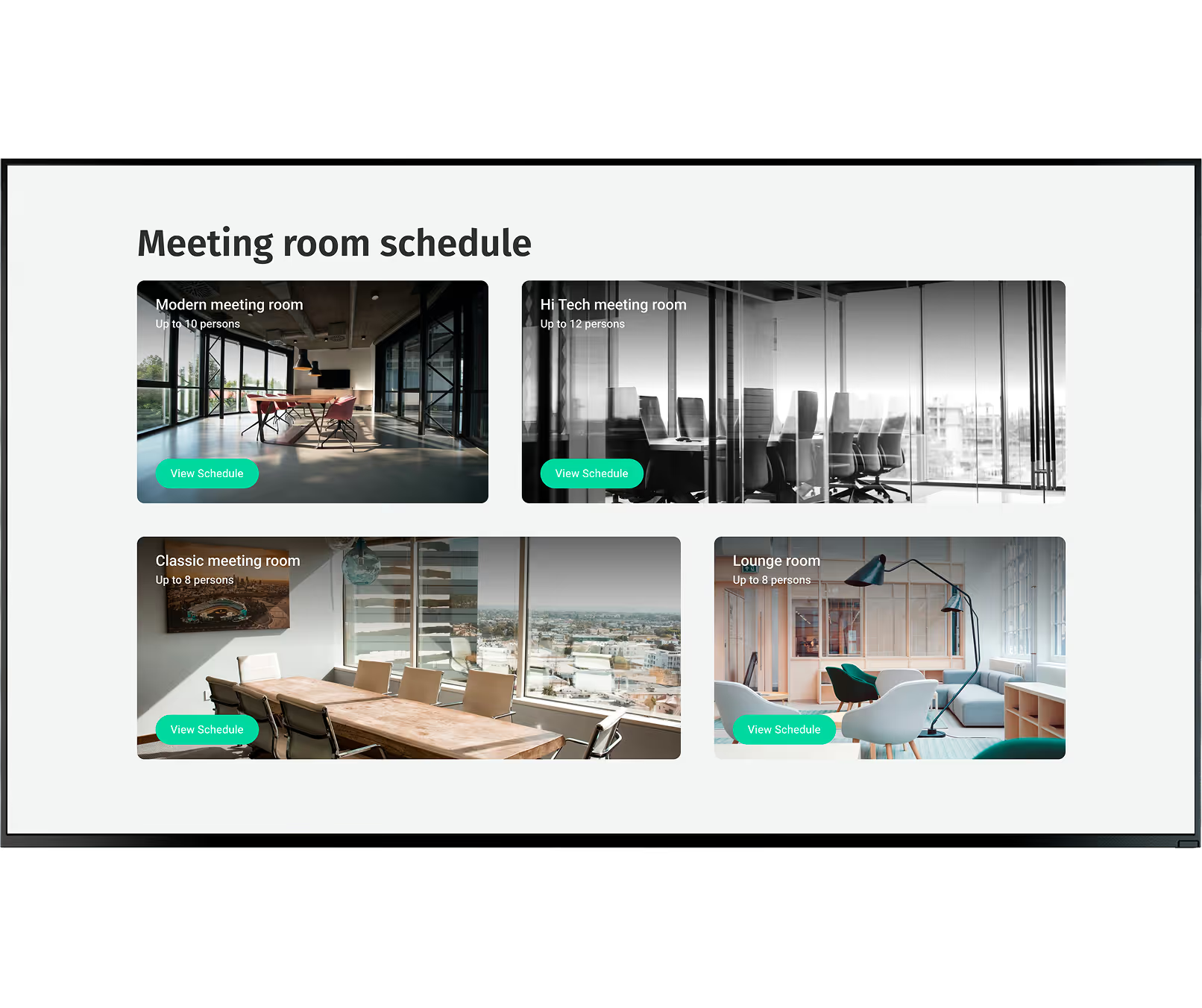
Meeting room schedule with photos and capacity for modern, hi-tech, classic, and lounge rooms plus view schedule buttons.
icon_XL_smile

Increases Collaboration

By making it simple to find and reserve rooms, digital signage supports spontaneous teamwork. Interactive signs let you book a room directly on the screen for a quick sync. QR codes on displays let staff book rooms straight from their phones without opening a laptop — saving time and keeping focus on work.
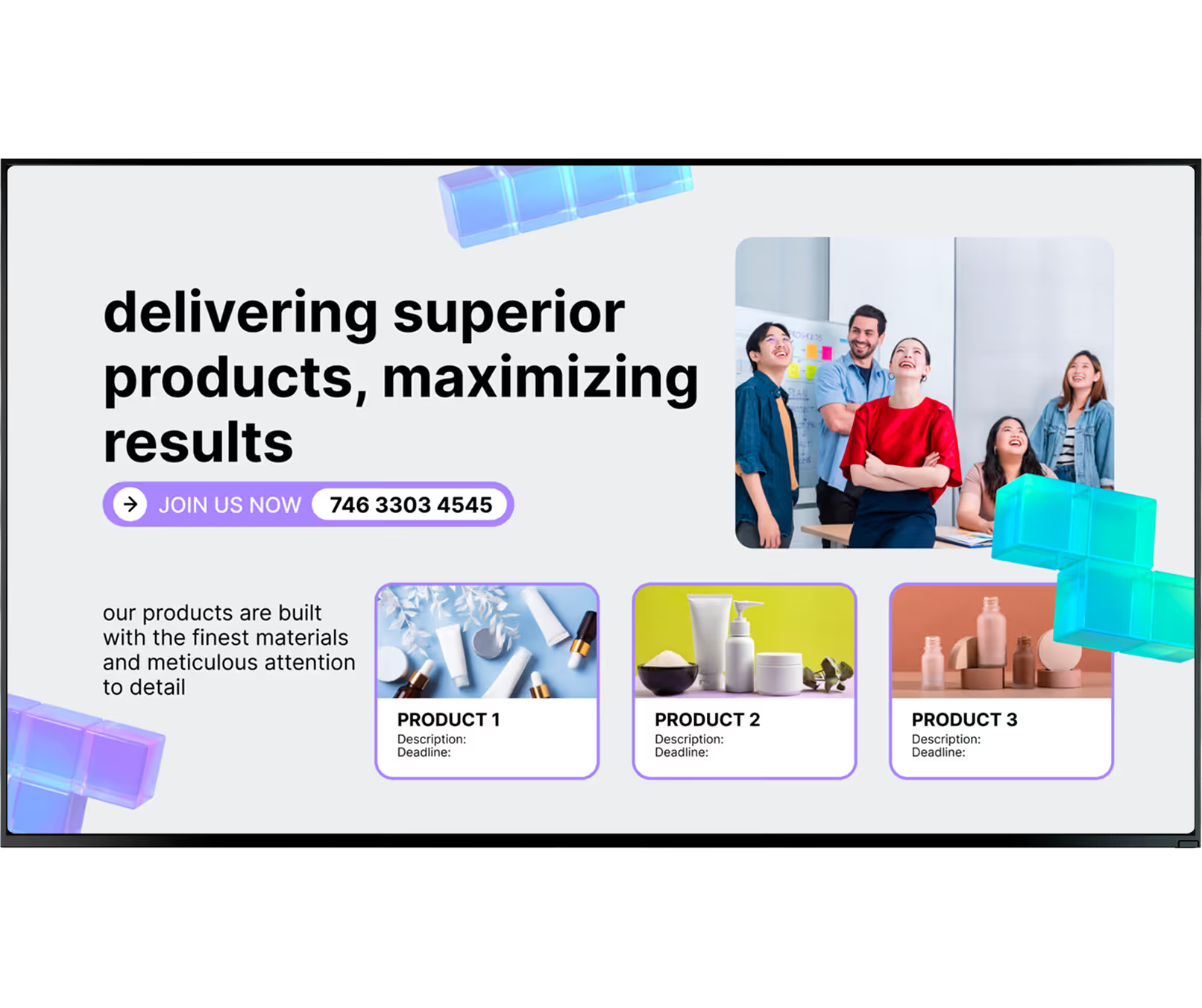
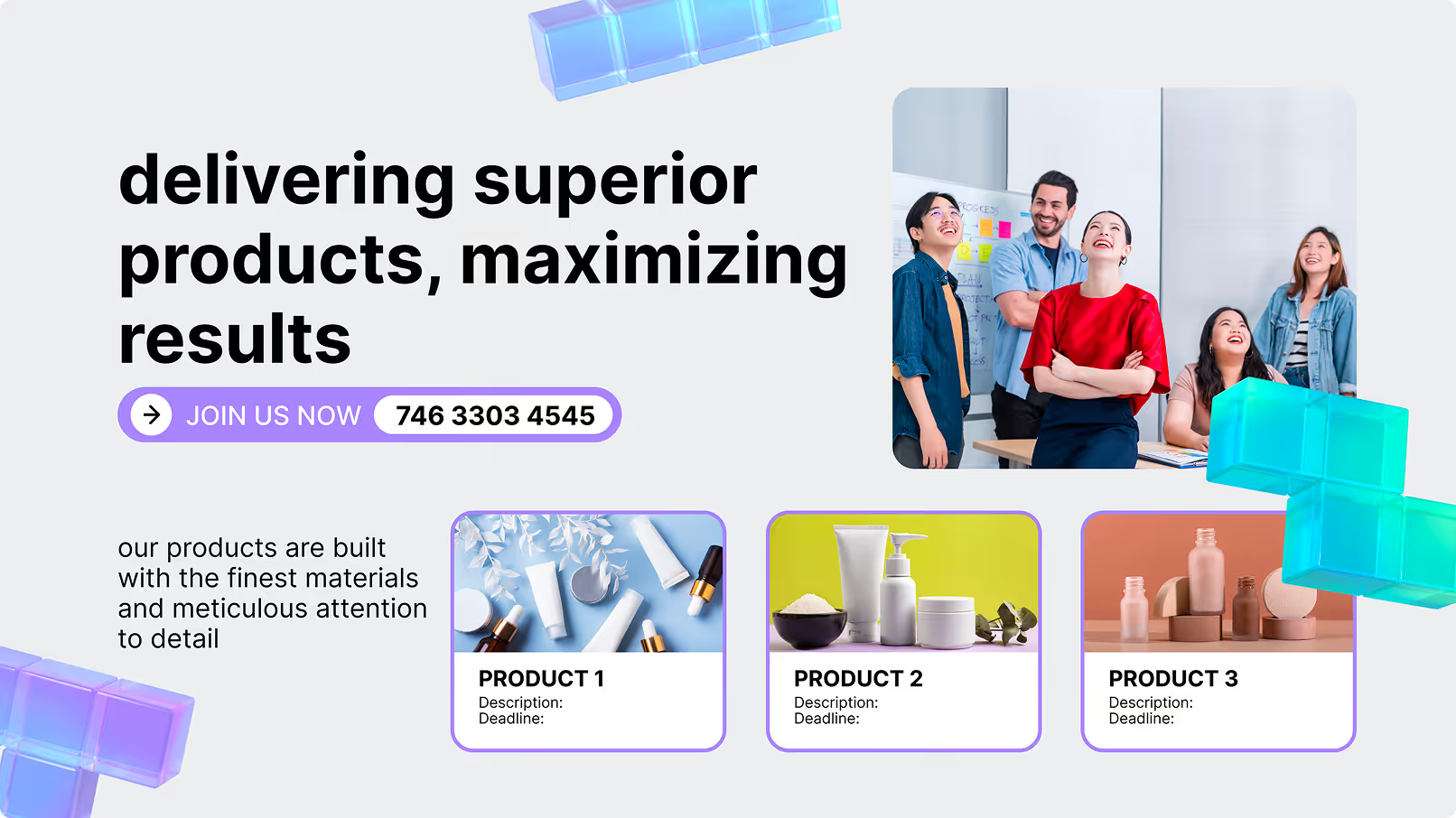
Team smiling in office with skincare product images and text about delivering superior products and results.
Percent icon

Reduces Administrative Workload

Older room management methods force IT staff or office admins to waste time printing paper schedules. Digital signage is built so non-technical staff can run it easily — most daily updates happen automatically from the calendar system. Admins manage all screen layouts, content, and device uptime from one cloud dashboard.
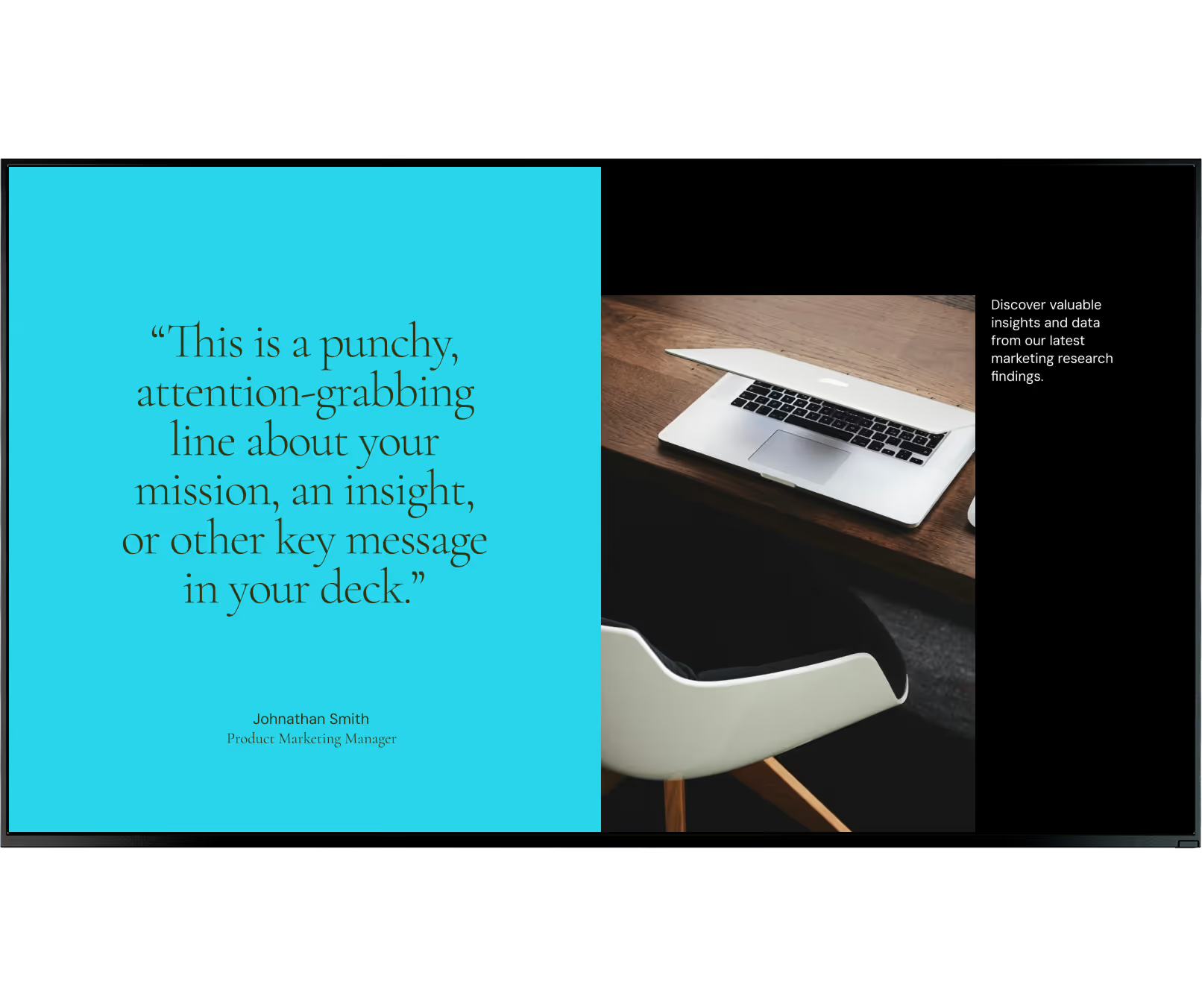
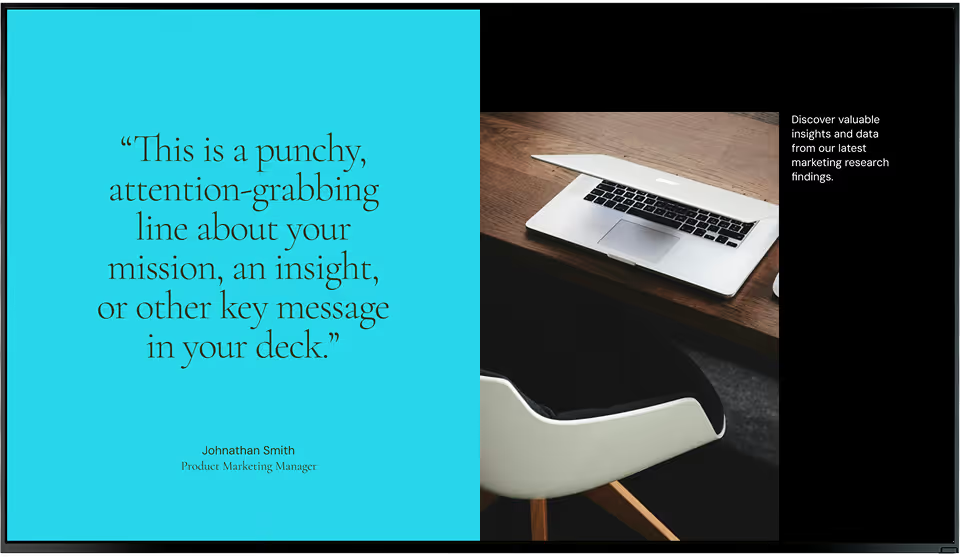
Presentation slide with a quote about a key message and a laptop on a wooden desk with a white chair.
Polar Star Icon

Enables Rapid Emergency Alerts

Safety is a priority in any workplace. Digital signage links to emergency alert systems to instantly push warnings or instructions to every screen in the building. Content overrides mean even people inside closed or soundproof rooms will see safety messages right away on the in-room displays. This capability is often required by compliance plans.
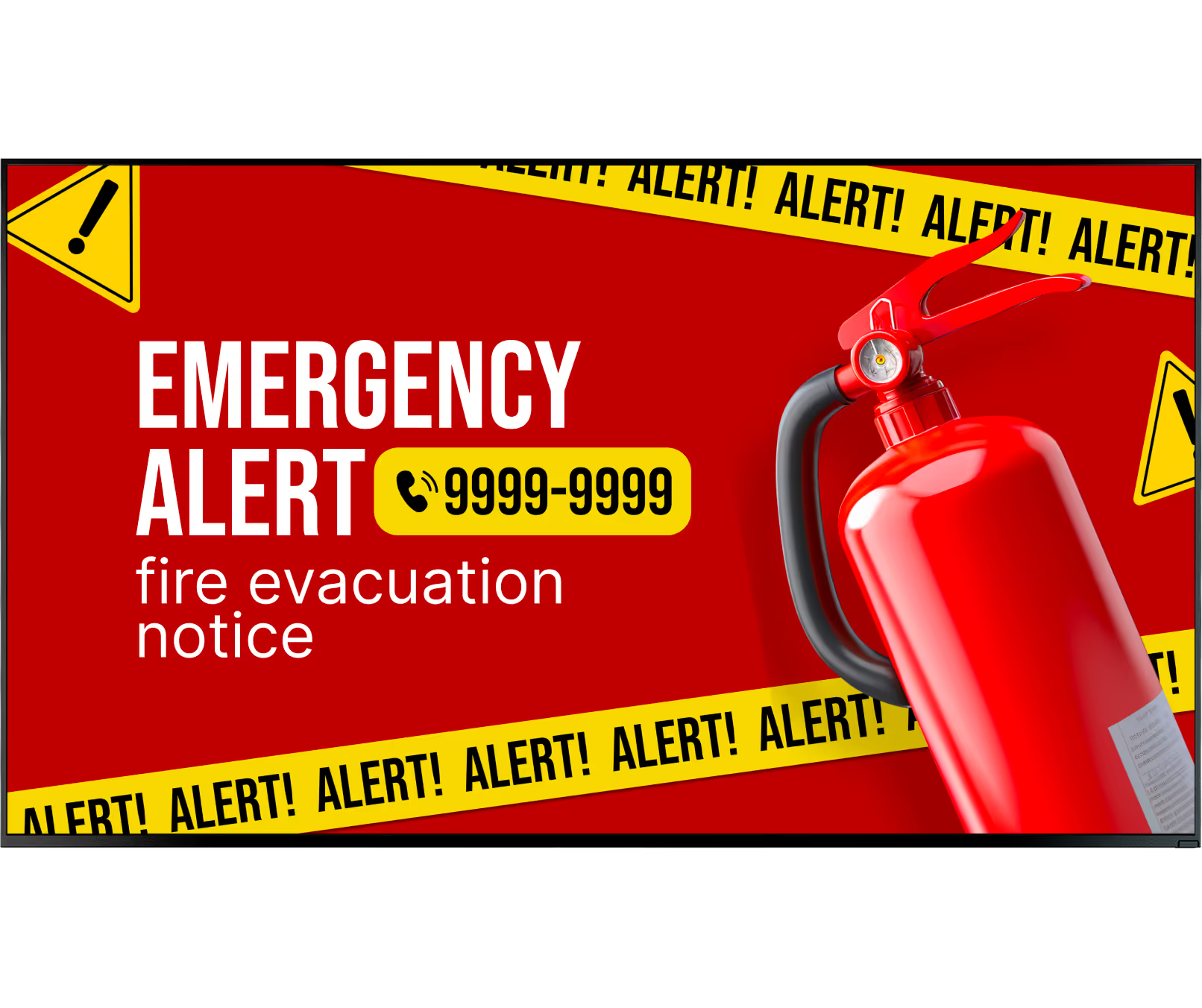
Red fire extinguisher with emergency alert and fire evacuation notice with phone number 9999-9999.
Eye

Enhances Visitor Experience

Visitors often find large offices confusing. Digital signage at reception and outside meeting rooms shows welcome messages, meeting names, and clear directions. A consistent, branded experience across all your screens shows that your company is organized — leaving a highly positive impression on clients and job candidates.
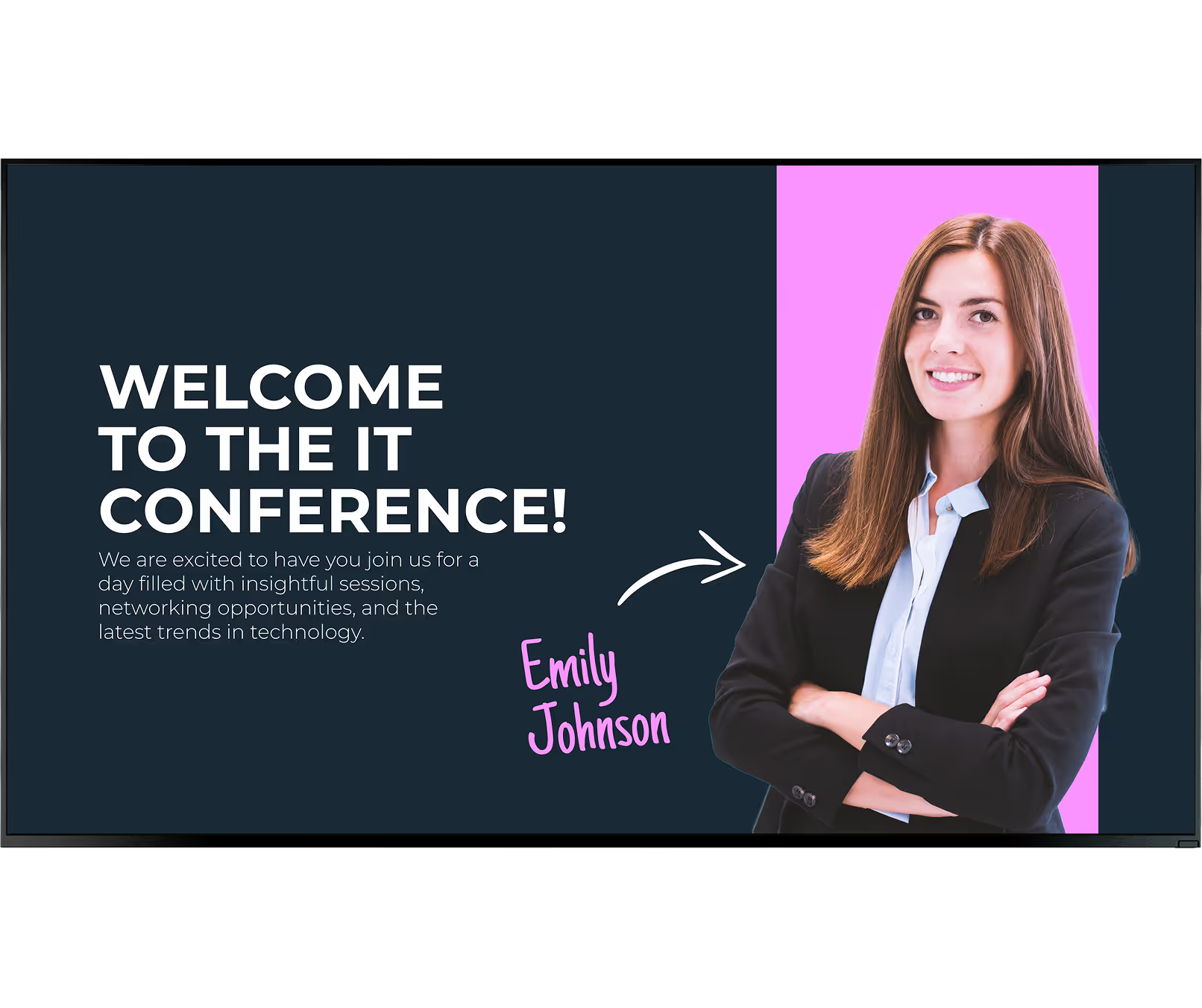
Smiling woman in black blazer with folded arms, introducing Emily Johnson at IT conference.
Meeting room schedule with weekly sales, marketing, developers, customer, and QA meetings from Monday to Friday.Graph with a purple line and highlight on May, showing peak data point on a timeline from January to July.
Meeting room schedule with photos and capacity for modern, hi-tech, classic, and lounge rooms plus view schedule buttons.like
Team smiling in office with skincare product images and text about delivering superior products and results.Black and white QR code with a cursor pointer on the bottom right corner.
Presentation slide with a quote about a key message and a laptop on a wooden desk with a white chair.Flayer
Red fire extinguisher with emergency alert and fire evacuation notice with phone number 9999-9999.Alert
Smiling woman in black blazer with folded arms, introducing Emily Johnson at IT conference.Digital signage for school, megaphone

Who it's for

The right meeting room setup for every workspace

Different office environments have different booking demands, hardware constraints, and content needs. Here are the six settings where meeting room digital signage delivers the greatest impact.

Corporate

Corporate Offices

High-demand meeting areas with constant calendar activity. Full calendar sync with Microsoft 365 or Google Workspace keeps every door sign accurate. Corridor summary screens near elevators guide employees and visitors across multiple floors without needing to ask for directions.

Agile

Huddle Rooms & Hot-Desks

Small, high-turnover spaces need fast, ad-hoc booking. Touchscreen signs allow instant reservations on the spot. QR codes link to mobile booking so teams can grab a huddle room in seconds, and auto-release prevents ghost bookings from blocking real availability.

Executive

Boardrooms & Executive Suites

Impress clients and candidates with branded welcome screens displaying the visitor's company name and event details. PIN-protected booking controls restrict who can modify reservations, and in-room large-format displays serve as signage when meetings are not taking place.

Coworking

Shared & Flexible Workspaces

Coworking environments manage bookings across many different tenants. Digital signage with role-based access lets each company manage their own rooms while the venue operator controls the overall network. E-ink displays on glass walls offer wireless, battery-powered installation with no cabling required.

Campus

Multi-floor & Large Buildings

Large buildings need more than door signs. Multi-zone corridor screens near main entrances and elevators list nearby rooms with live availability, while interactive floor maps guide visitors from reception to their destination. Manage every screen across every floor from one central dashboard.

Enterprise IT

Regulated & Hybrid Environments

Organizations with strict IT policies can choose between a cloud-based or on-premise deployment of Look DS. Both options deliver full calendar sync and remote management. The flexible deployment model ensures you meet internal hosting and security requirements without compromising on features.

Use cases

Where meeting room signage makes the biggest difference
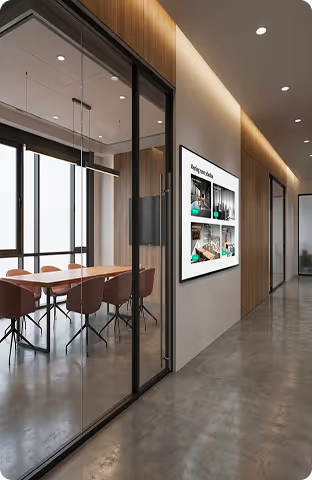
Modern office corridor with glass-walled meeting room and digital display on wood-paneled wall.

Room Door Signs

Small screens mounted outside each room at eye level (roughly 60 inches from the floor) show real-time availability, meeting title, organizer, and current time slot. Color-coded LED strips — red for busy, green for free — make room status readable from down the hall without stopping to read.
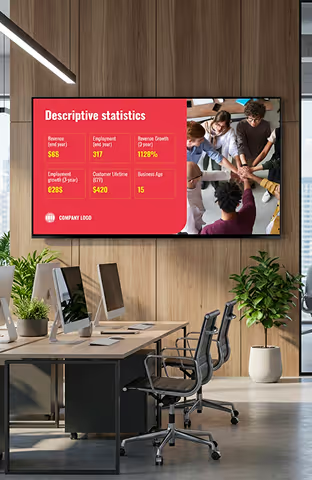
Office with computers and chairs, screen shows descriptive statistics like revenue and employment growth rates.

Corridor Summary Screens

Using Screen Layouts, you can build multi-zone displays near elevators and main corridors that list every nearby room with live availability. These screens guide visitors and employees without the need for constant directions from reception staff, cutting down on wandering in large buildings.
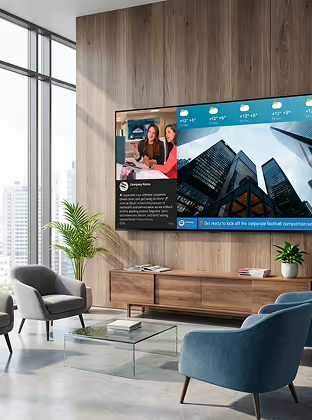
Modern living room with a large TV screen showing news and weather, surrounded by stylish chairs and plants.

In-Room Large Displays

Smart TVs and LED panels inside meeting rooms double as digital signage when meetings are not taking place. Install the free Look App or connect a Look HDMI Player to reuse hardware you already own. When idle, in-room screens can show company announcements, KPIs, or branded content instead of sitting dark.
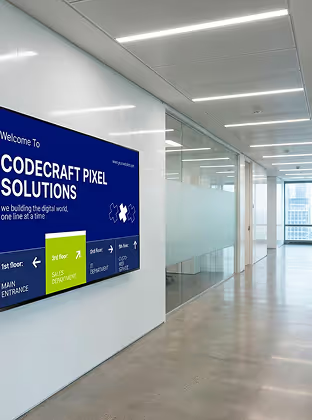
Modern office hallway with glass walls and a digital sign for Codecraft Pixel Solutions on the left.

Interactive Wayfinding Maps

Interactive floor maps on larger lobby or entrance displays show floor-by-floor layouts and guide visitors to their meeting room without requiring a member of staff. Clear visual routing cuts down on wandering and creates a professional first impression for guests arriving at unfamiliar buildings.
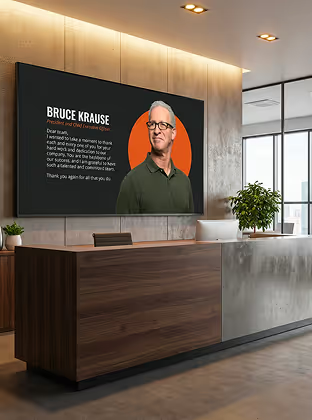
Modern office lobby with wood and concrete reception desk and screen showing Bruce Krause's message.

Reception & Lobby Screens

Reception screens display welcome messages with visitor and company names, meeting details, and branded visuals. For a board meeting, the screens in that corridor welcome guests with their company logo and event details. This organized experience leaves a highly positive impression on clients and job candidates.
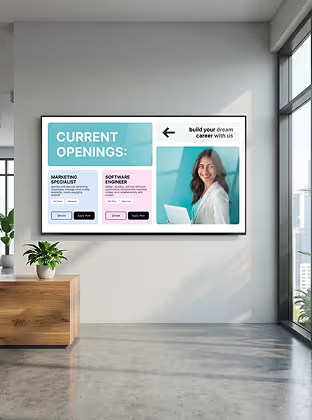
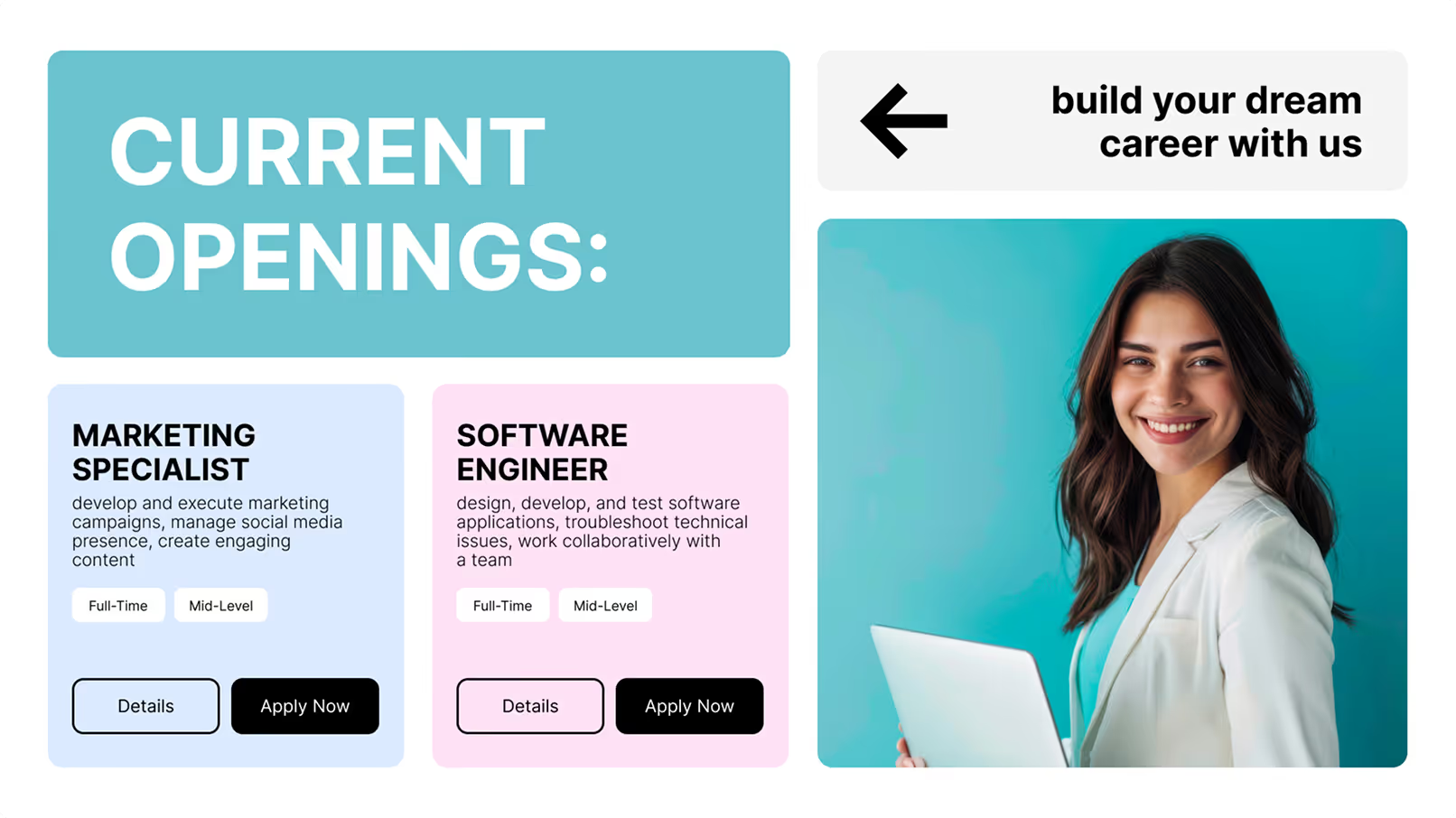
Wall display listing job openings for marketing specialist and software engineer with a smiling woman holding a laptop.

Department Corridor Screens

Targeted messages mean different areas of the office feel genuinely relevant to the teams working there. A sales room corridor might show recent performance rankings, while an engineering corridor displays project updates. This keeps screens useful and encourages staff to check them throughout the day.

Hardware & setup

Two simple ways to get content on your screens

Exhibition area with a cylindrical blue display featuring a cityscape and text about an upcoming global event.Green shield icon with a white check mark on a black rounded square background representing security or verification.

Install the free Look App

Install the free Look App on any supported smart TV or existing in-room display to start serving content without additional hardware. Ideal for in-room large-format screens that already have smart OS support and for repurposing hardware you already own.

Android
Windows
Fire OS
Samsung Tizen
LG webOS
Raspberry Pi
Amazon Signage
Amazon Signage
Icon Linux
Linux
macOS
MacOS
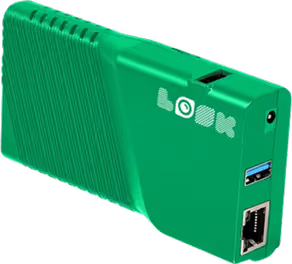
Quote about mission and key message next to laptop on wooden desk and white chair.Green rectangular electronic device with ventilation slots, two USB ports, an Ethernet port, and the word 'LOOK' printed on it.

Plug in the Look HDMI Player

Plug the Look HDMI Player into any HDMI-equipped display for instant deployment. Designed for always-on environments with local content caching, remote management, and guaranteed uptime — ideal for corridor summary screens and door signs that need to stay live around the clock.

Any displays with HDMI
LED screens 
Video walls
Plug-and-play

Meeting room environments vary by install.

Touchscreen signs powered via Power over Ethernet (PoE) deliver interactive booking with a single cable and are ideal for door signs requiring check-in and extension controls. E-ink displays run on batteries for months and mount wirelessly on glass walls or drywall with no cabling, making them perfect for hot-desking areas or rooms where running cables is impractical. Reuse existing in-room TVs with the Look App to increase hardware value without any additional capital spend.

View full hardware guide →

How it works

Live and running in three steps

  • Content

    Connect to your calendar

    Link Look CMS to your Microsoft 365 or Google Workspace account using standard permissions. Any booking made at a desk or on a mobile app appears on the room door sign in seconds — no manual data entry, no separate scheduling system to maintain.
  • Schedule

    Mount displays and customize

    Place screens outside rooms at eye level (roughly 60 inches), add corridor summary screens near elevators, and reuse in-room TVs with the Look App or HDMI Player. Pick a ready-made template, customize your branding colors and fonts, and publish to all screens at once.
  • Playlists

    Manage everything remotely

    Push software updates, refresh content, and check device health across your entire network from one central dashboard — no on-site visits required. Organize screens into logical groups by building or floor so a global safety notice goes everywhere while a local announcement stays relevant.
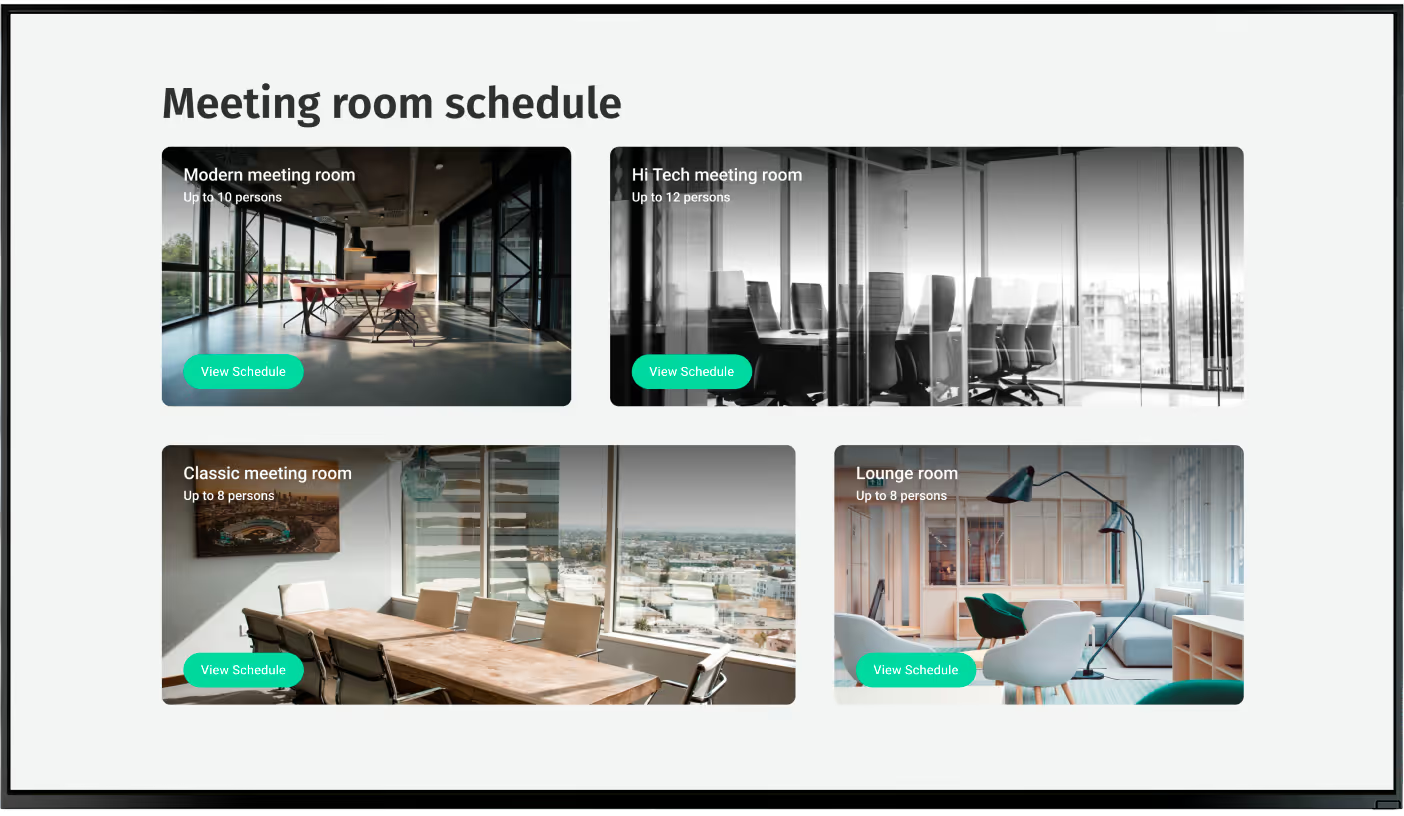
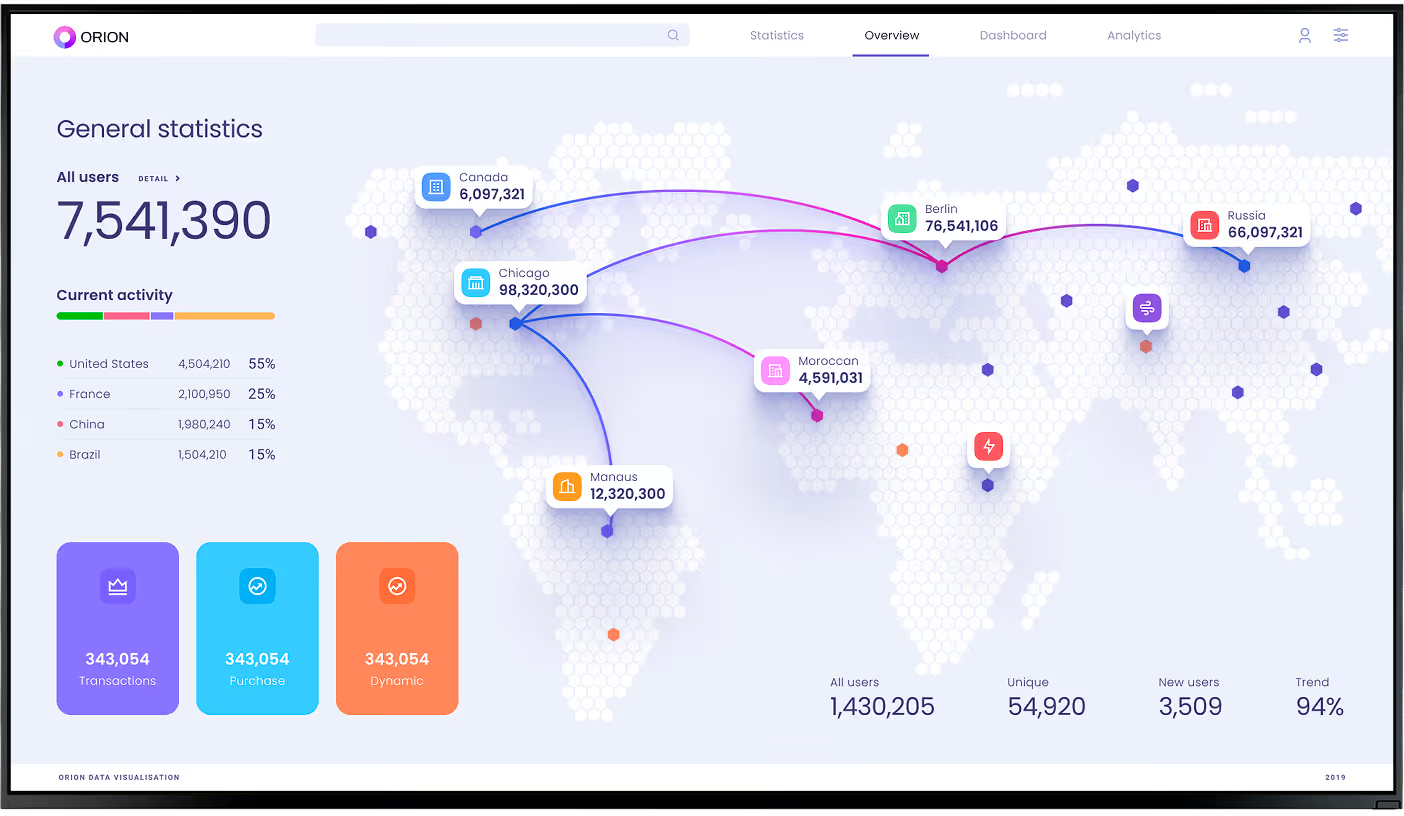
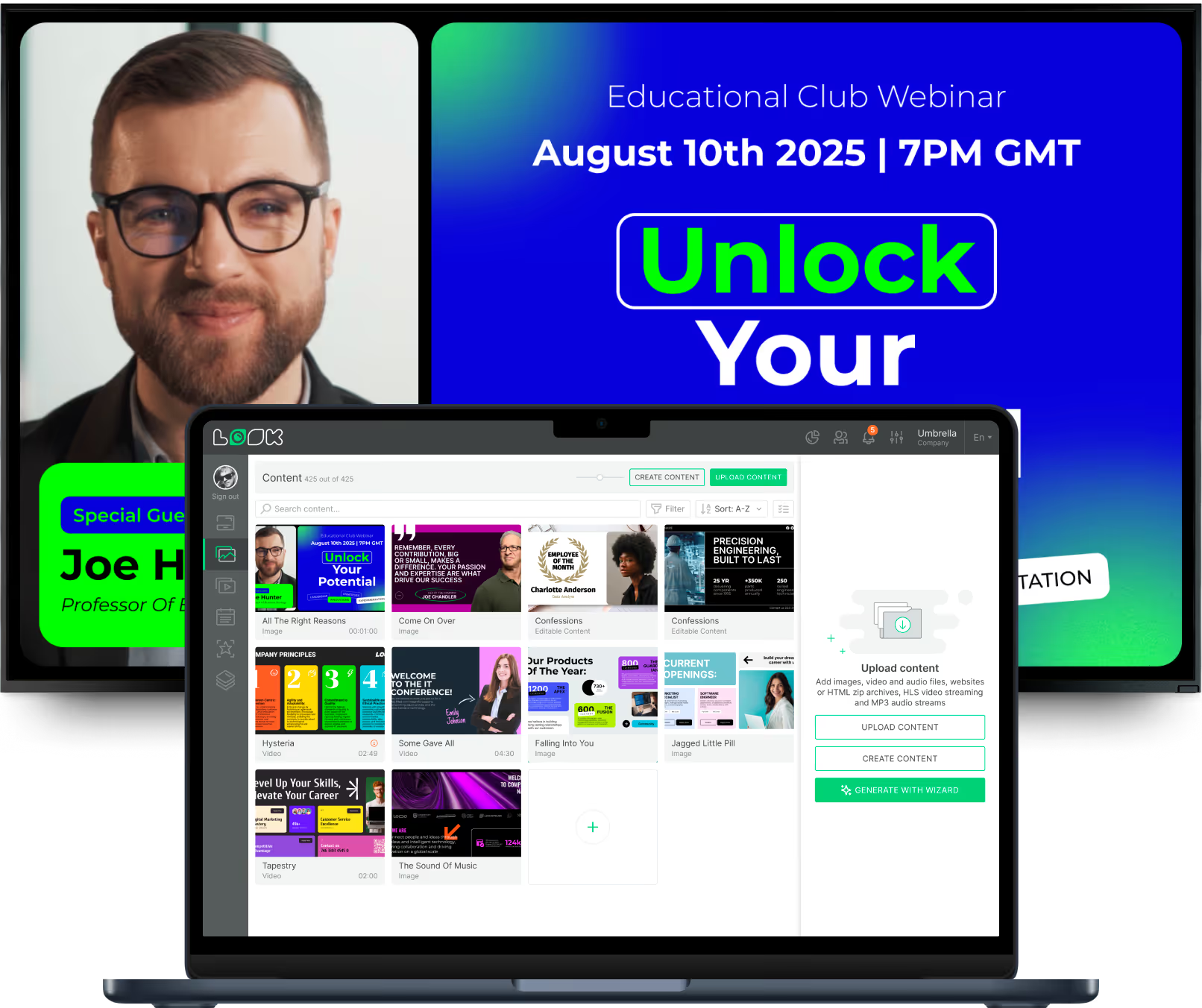
Meeting room schedule showing four rooms with photos, capacity, and 'View Schedule' buttons.World map highlighting user statistics and current activity by country with connection lines and transaction data.Laptop showing content management interface in front of webinar ad with man and text Unlock Your Potential.

Key features

Everything a meeting room operator needs

icon_XL_clock

Real-time Room Availability Display

Clear visual indicators — often LED light strips along the screen edge — show room status from down the hall. Red for busy, green for free. Each display shows the meeting title, organizer, and current time slot, stopping people from knocking on doors to ask when a room will be free.
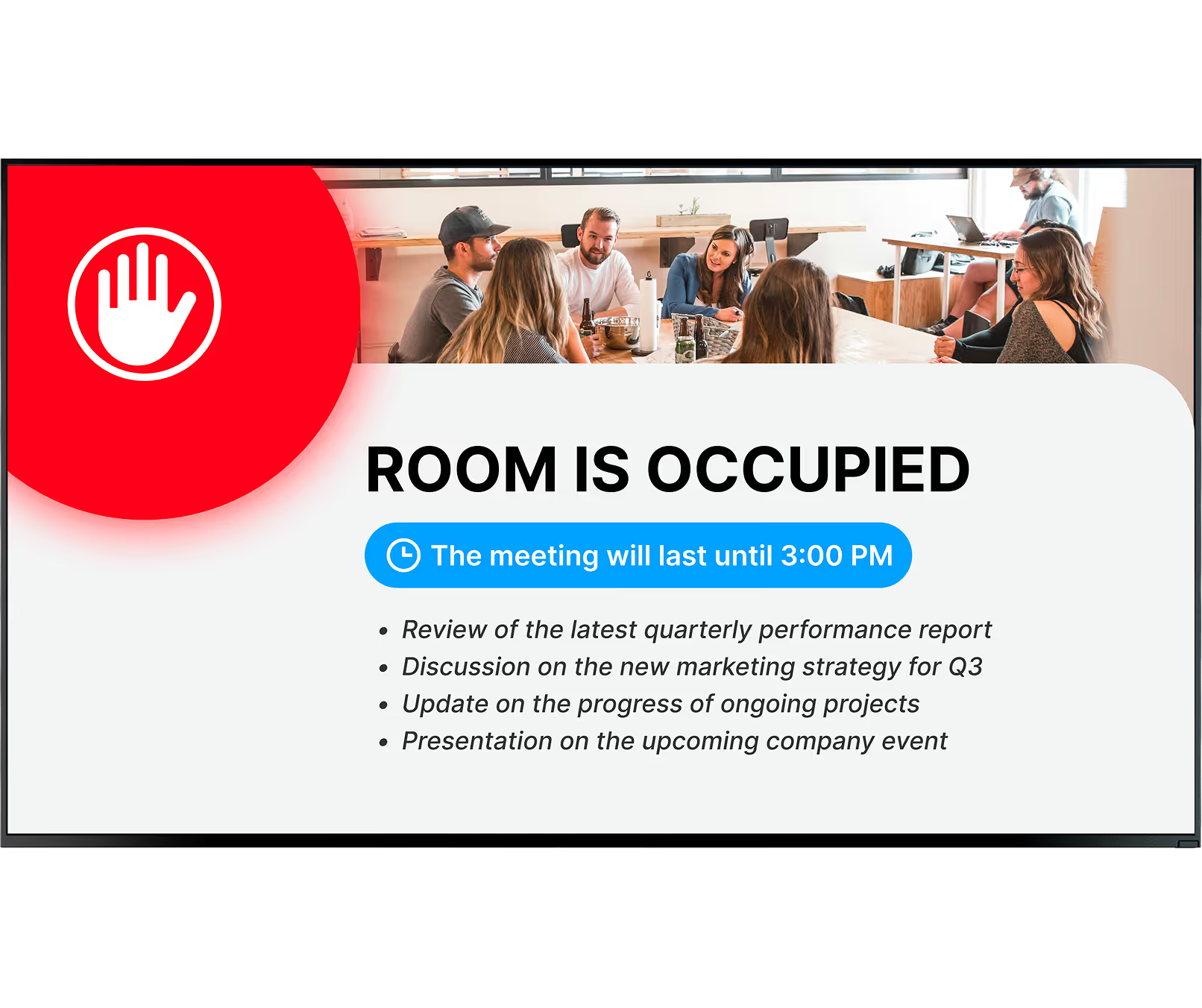
Room occupied sign with a meeting lasting until 3:00 PM and agenda items listed below.
apps icon

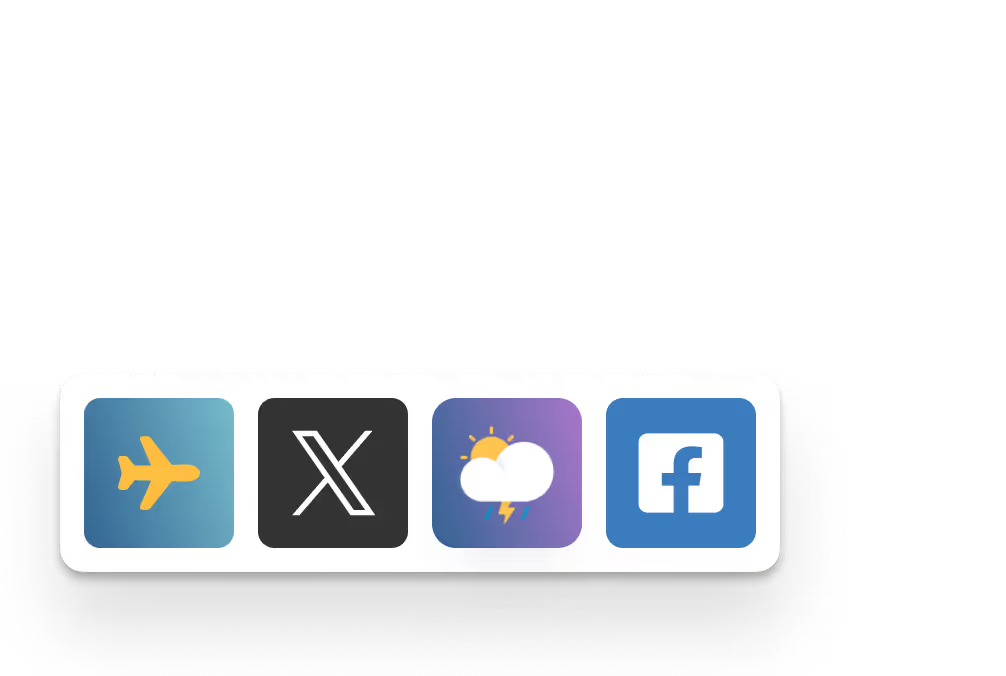
Calendar Sync (Microsoft 365 & Google Workspace)
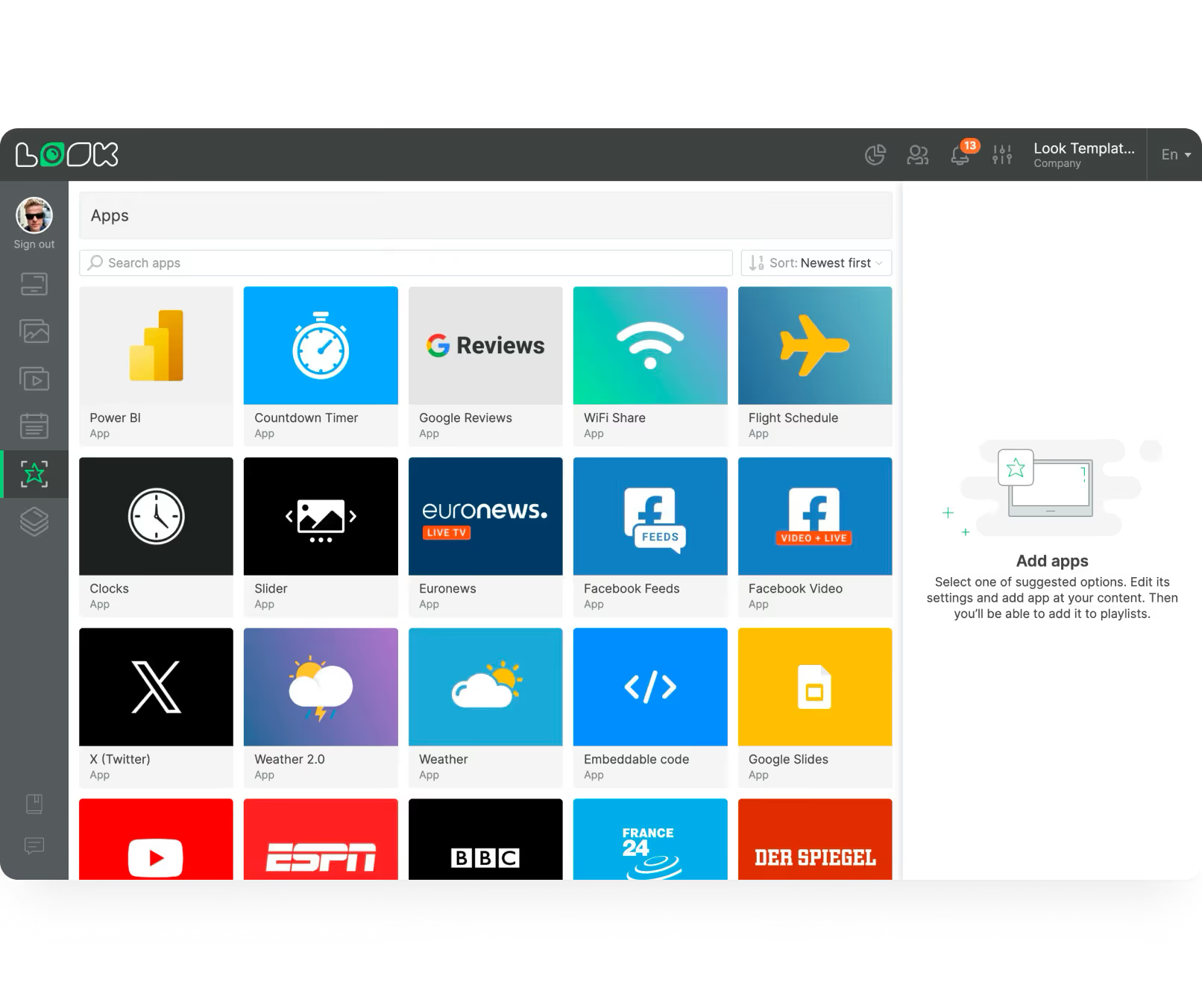
Two-way sync with Microsoft 365 and Google Workspace means booking changes — made at a desk, on mobile, or on the room sign — update everywhere in seconds. Some systems pull bookings from several event tools at once, creating one simple, consistent schedule across all rooms.
User interface showing various app icons including Power BI, Google Reviews, WiFi Share, and Facebook Feeds.
Touch Icon

On-screen Booking, Check-in & Auto-release
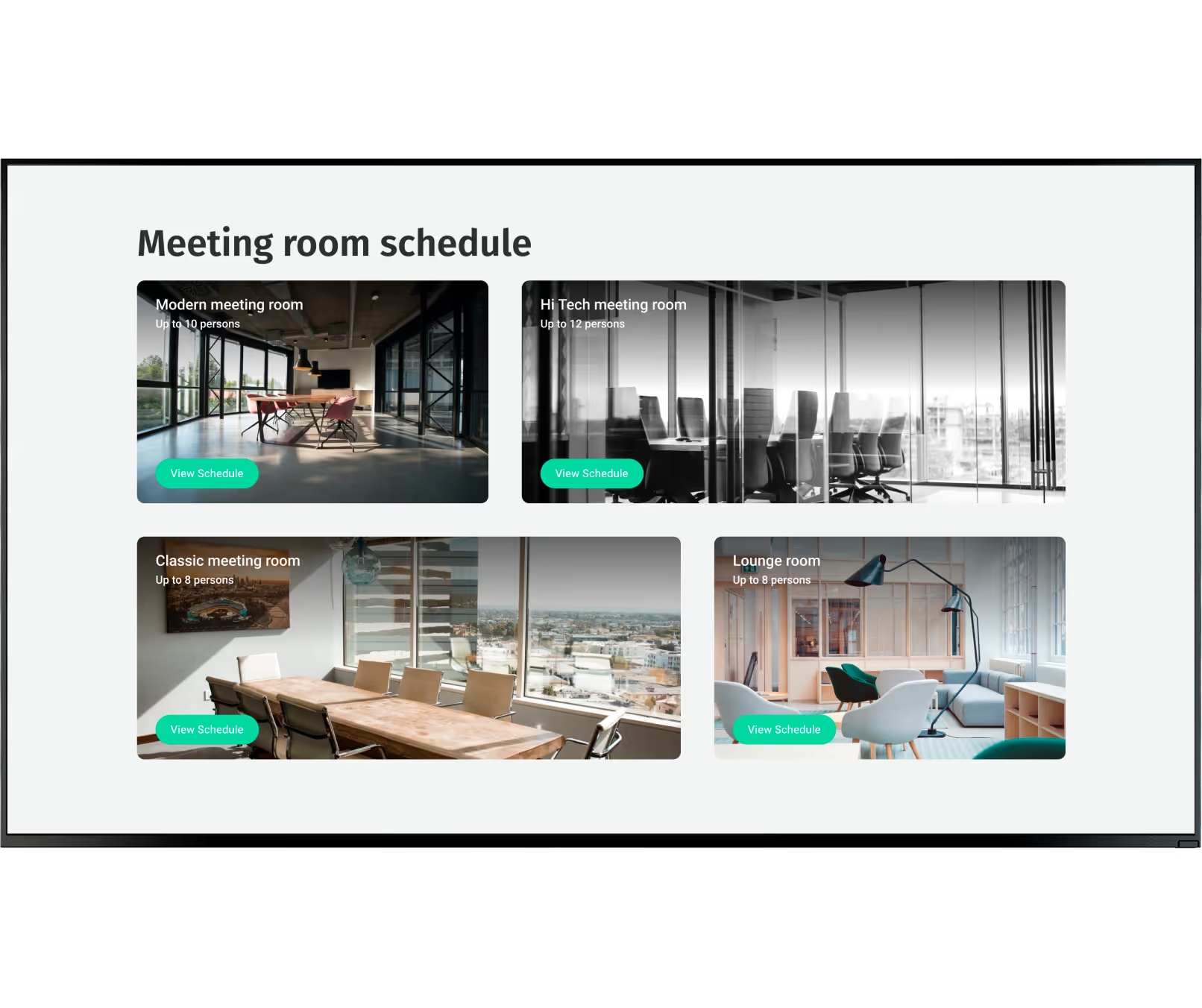
If a room is open, anyone can tap the display to reserve it for a set time. Hosts can extend or end meetings directly from the sign. If the meeting host does not check in on time, the room is automatically freed and returned to the booking pool — eliminating ghost meetings.
Meeting room schedule with four rooms: modern, hi tech, classic, and lounge, each showing capacity and view button.
icon_XL_navigation

Wayfinding & Directional Signage

Using Screen Layouts, you can build multi-zone summary screens near elevators that list nearby rooms and current meetings. Design interactive maps on larger displays to show floor-by-floor layouts, guiding visitors without any help from staff and cutting down on wandering throughout the building.
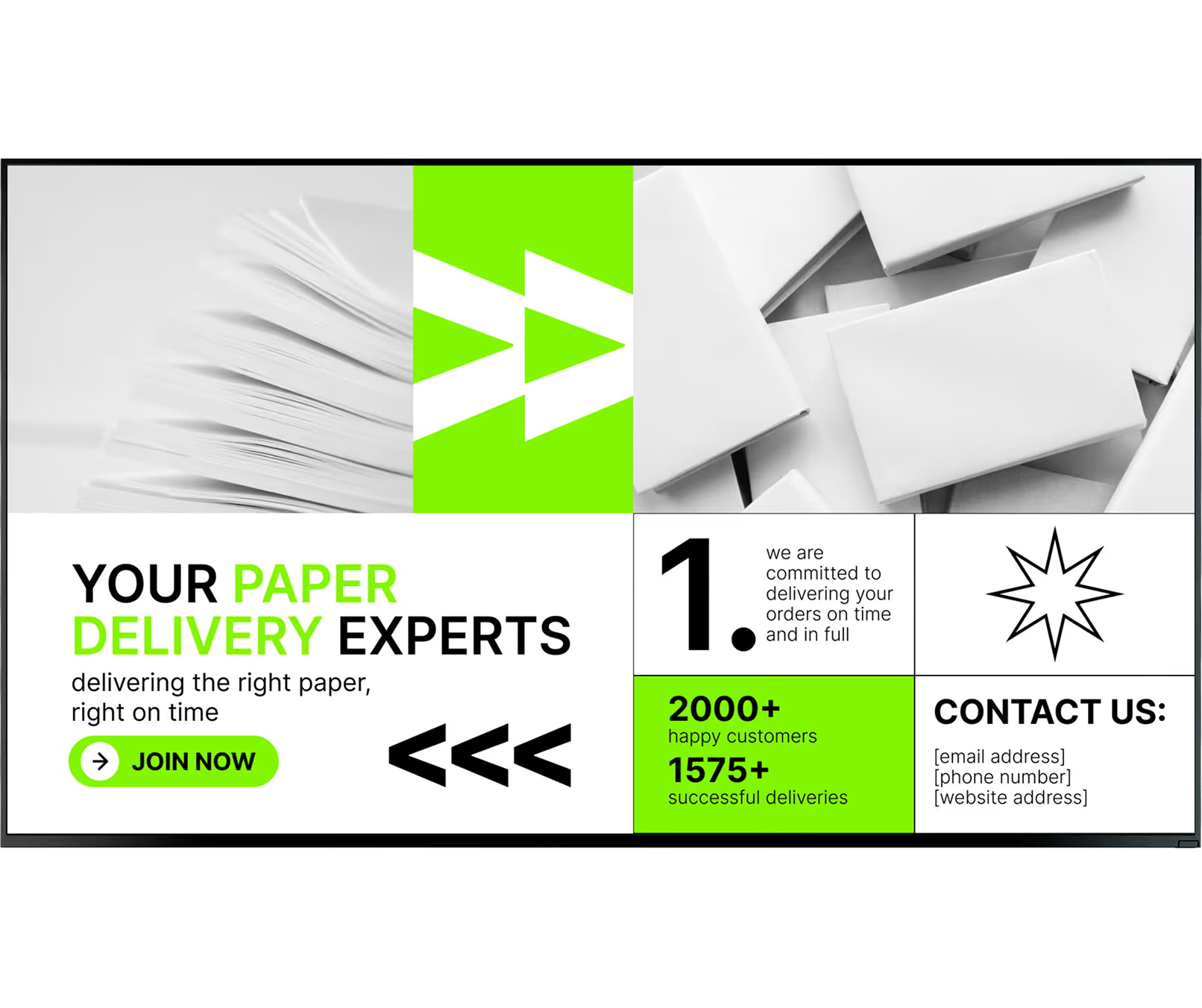
Advertisement for paper delivery experts with paper stacks and service highlights including 2000+ customers
Bubble icon

Targeted Messages & Announcements

Send specific content to specific screens only. A screen near the marketing department might show campaign goals, while a lobby screen welcomes a visiting client. Smart Scheduling lets admins create tailored playlists for each screen — turning every door into a smart, relevant communication touchpoint.
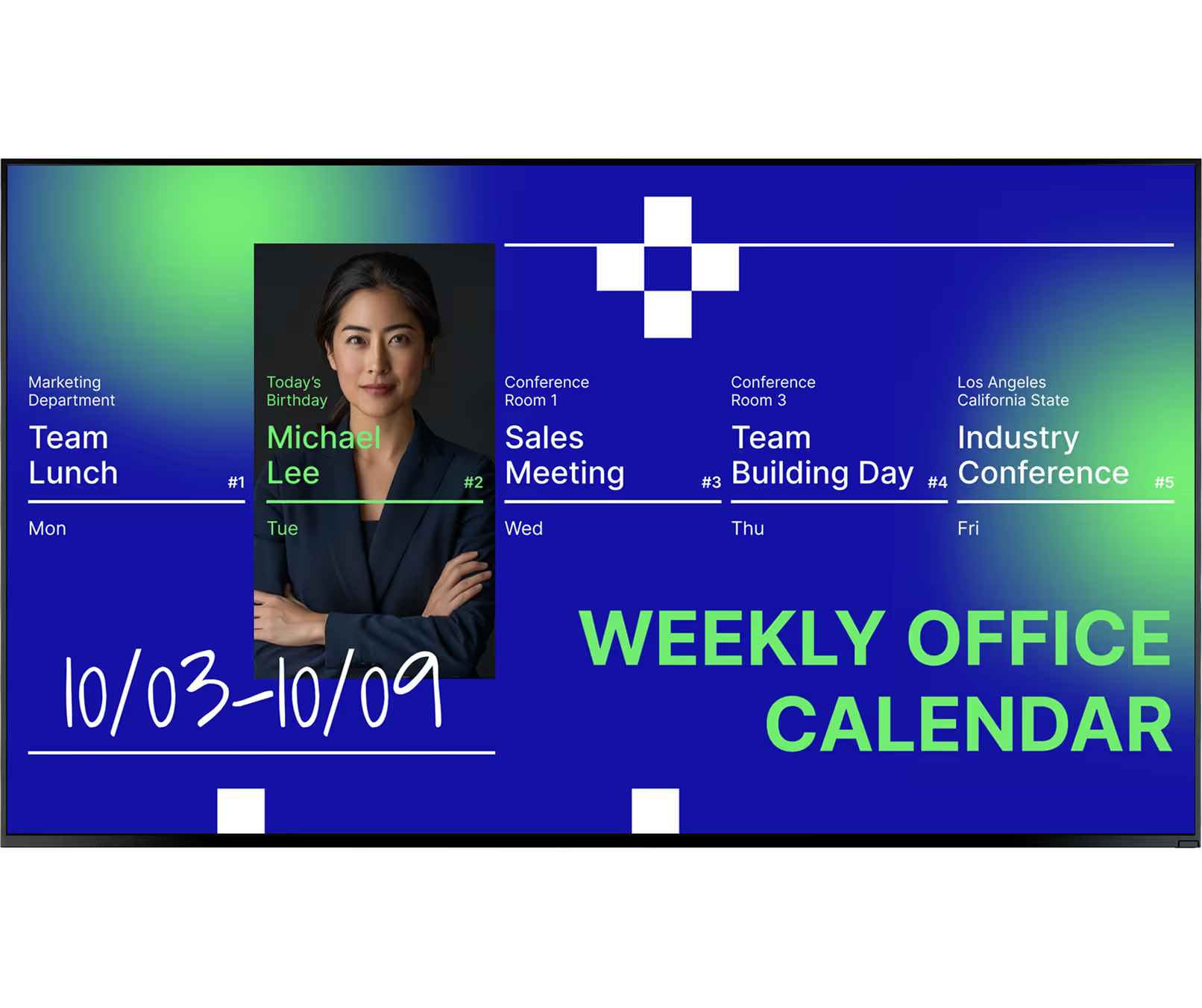
Weekly office calendar from October 3 to 9 with events: Team Lunch on Monday, Michael Lee's birthday on Tuesday, Sales Meeting on Wednesday, Team Building Day on Thursday, and Industry Conference in Los Angeles on Friday.
Polar Star Icon

Emergency Alert Override

During emergencies, the system overrides normal schedules to display safety instructions or evacuation routes on every screen in the building simultaneously. Content overrides ensure even people inside closed or soundproof rooms see critical safety messages right away on in-room displays.
Red fire extinguisher with emergency alert and fire evacuation notice with phone number 9999-9999.

Cloud & On-premise Deployment

Look DS offers a cloud-based platform for easy remote updates and seamless scaling. For regulated industries or organizations with strict internal hosting policies, Look also provides an On-Premise Digital Signage option. Both options deliver full calendar sync and remote management.
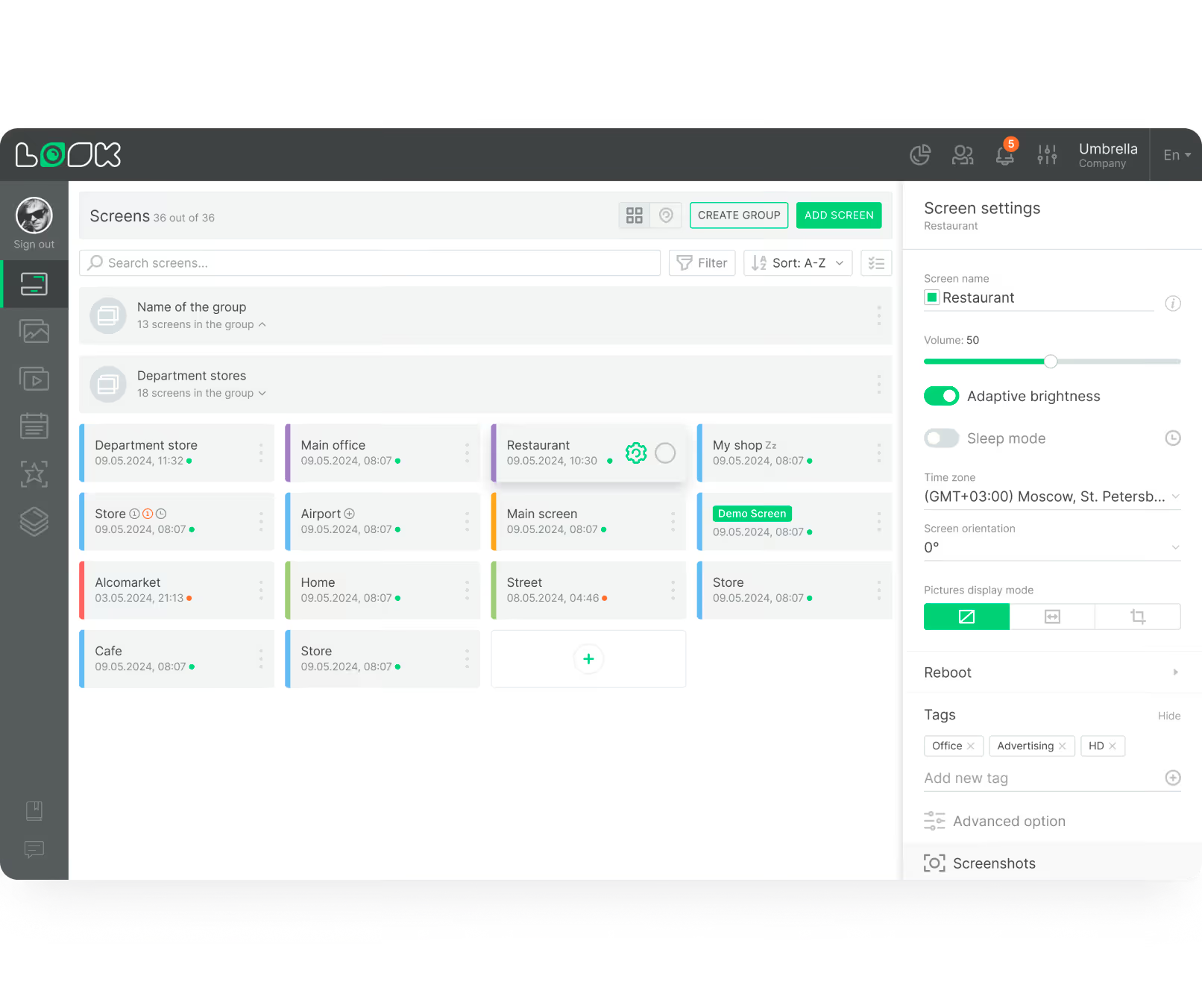
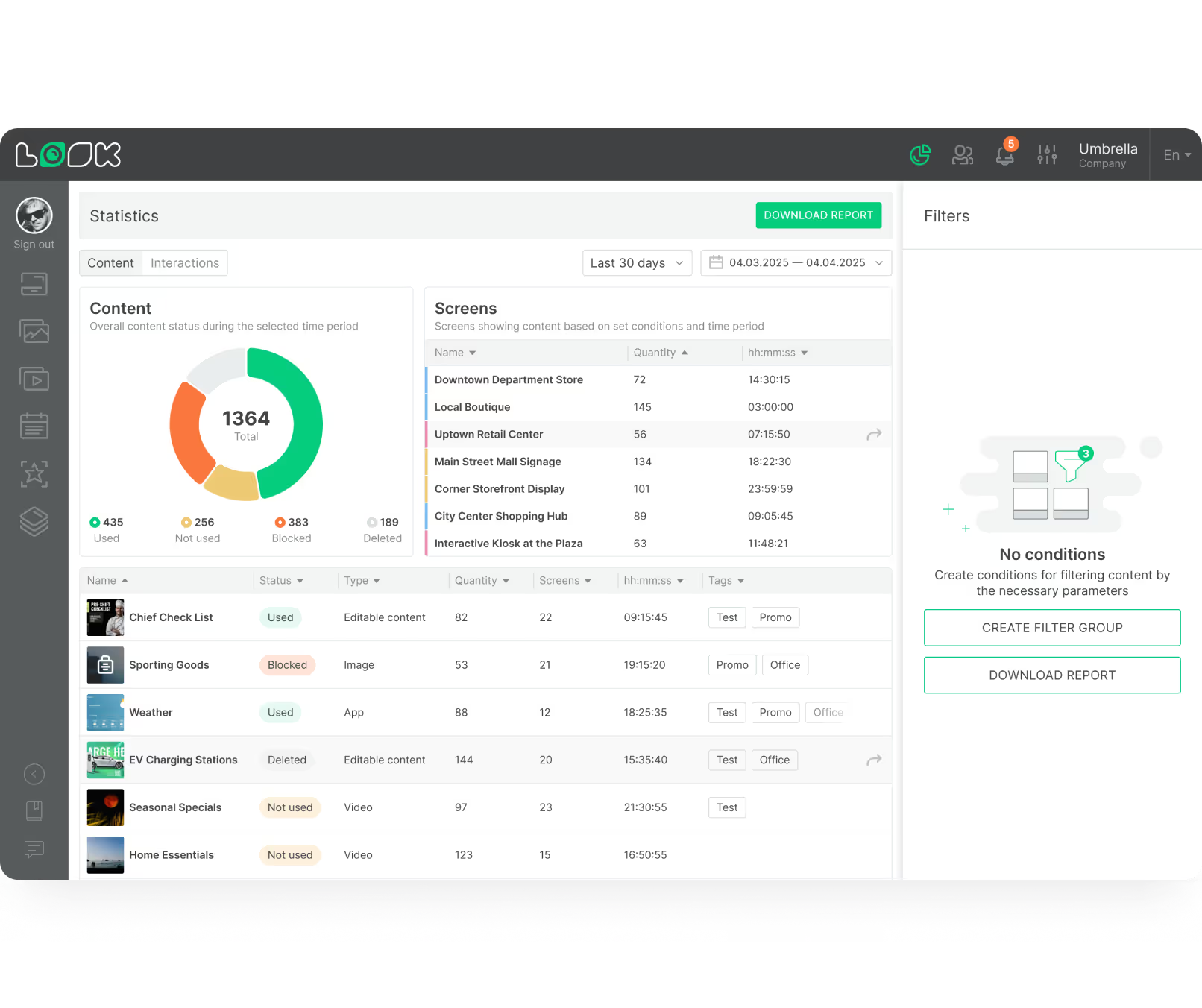
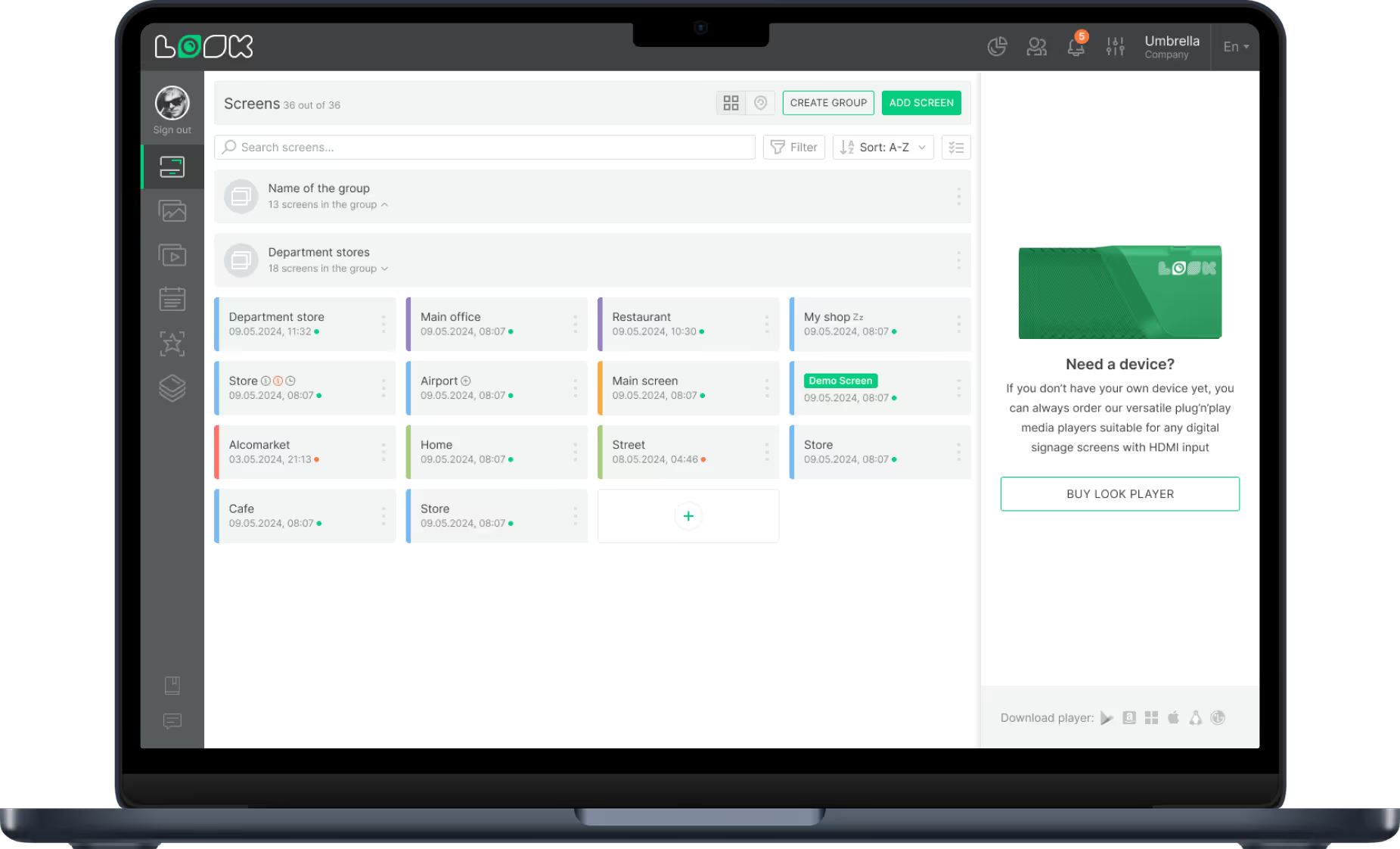
Dashboard screen showing a list of 36 grouped screens with details and status indicators for managing display settings including volume and adaptive brightness for a screen named Restaurant.

Space Analytics & Reporting

Playback Analytics and dashboard data let you spot which rooms are booked most, which are rarely used, and which time slots stay empty. Use this data to prove ROI on your real estate spend, make the case for layout changes, and demonstrate the value of your room management investment.
Dashboard interface showing content statistics with a pie chart of used, not used, blocked, and deleted content, a table listing screen names with quantities and durations, and a content list with status, type, quantity, screens, time, and tags.
Room occupied sign with a meeting lasting until 3:00 PM and agenda items listed below.
megaphoneBlack and white QR code with a cursor pointer on a white background.
User interface showing various app icons including Power BI, Google Reviews, WiFi Share, and Facebook Feeds.
LB Apps icons
Meeting room schedule with four rooms: modern, hi tech, classic, and lounge, each showing capacity and view button.
cursor
Advertisement for paper delivery experts with paper stacks and service highlights including 2000+ customers
Digital Signage for Entertainment, exit
Weekly office calendar from October 3 to 9 with events: Team Lunch on Monday, Michael Lee's birthday on Tuesday, Sales Meeting on Wednesday, Team Building Day on Thursday, and Industry Conference in Los Angeles on Friday.
megaphone
Red fire extinguisher with emergency alert and fire evacuation notice with phone number 9999-9999.
Alert
Dashboard screen showing a list of 36 grouped screens with details and status indicators for managing display settings including volume and adaptive brightness for a screen named Restaurant.
UI Screen cards
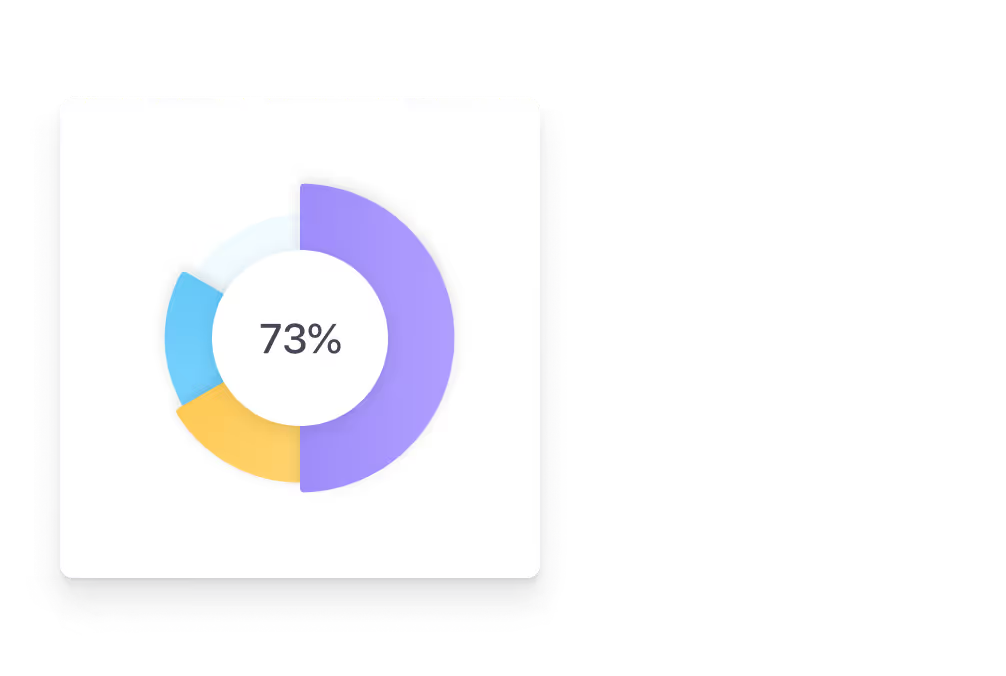
Donut chart showing 73% in purple, with smaller blue and yellow segments.
Dashboard interface showing content statistics with a pie chart of used, not used, blocked, and deleted content, a table listing screen names with quantities and durations, and a content list with status, type, quantity, screens, time, and tags.

Content best practices

Six tips for a successful meeting room rollout

01

Mount Screens at Eye Level

Where you put the screens has a massive impact on success. Mount displays outside each room at roughly 60 inches from the floor so anyone walking by can read room status and meeting details quickly. In busy areas, add larger summary screens near main corridors to guide people faster without interrupting staff.

02

Build a Strong Check-in Habit

Any system only helps if people actually use it. Promote a clear check-in culture so employees know that unconfirmed rooms will be automatically released back to the booking pool. When staff understand this rule, they interact with the screens naturally — leading to better space usage for everyone and fewer ghost meetings.

03

Start with a Pilot (2–3 Rooms)

Starting with a small pilot in just two or three rooms is the best way to gather feedback. It lets your IT and facilities teams learn the system — testing calendar sync, customizing templates, and checking device health — before rolling out to the entire building. A pilot reduces risk and speeds up the full deployment.

04

Group Screens by Floor or Department

Organizing your screens into logical groups by building or department makes managing content much faster. You can send a global safety notice to every screen at once, or update just the screens on a single floor. This structure scales cleanly from a one-floor office to a global campus without creating management overhead.

05

Personalize Content When Rooms Are Empty

When rooms are not in use, displays should not sit blank. Build a playlist to share company news, messages from leaders, or team shout-outs. Screens near the sales team can show performance rankings; engineering corridors can show project milestones. Relevant, targeted content turns every screen into an active communication tool.

06

Define Goals Before Deployment

Before you roll out, define what you want to achieve. Are you mostly trying to stop double bookings, or do you also want to improve visitor wayfinding and internal communications? Clear goals make it easier to choose the right features, prioritize which screens to deploy first, and measure success after launch.

Common mistakes

Four meeting room signage pitfalls to avoid

No check-in policy — ghost meetings persist

Without a check-in requirement, rooms stay marked as booked even when the meeting was canceled or the organizer is a no-show. Ghost meetings block real availability and frustrate teams who cannot find a free space during peak hours.

Fix: Enable auto-release for unconfirmed bookings and promote the check-in habit company-wide. When staff know unchecked rooms are freed, they interact with screens naturally.

Ignoring wayfinding in large buildings

Deploying door signs only and skipping corridor wayfinding screens means visitors still wander the building looking for their meeting. Reception staff end up spending time giving directions that a screen could handle automatically.

Fix: Add multi-zone summary screens near elevators and main corridors. Build interactive floor maps on larger lobby displays to guide guests from reception to their destination without staff assistance.
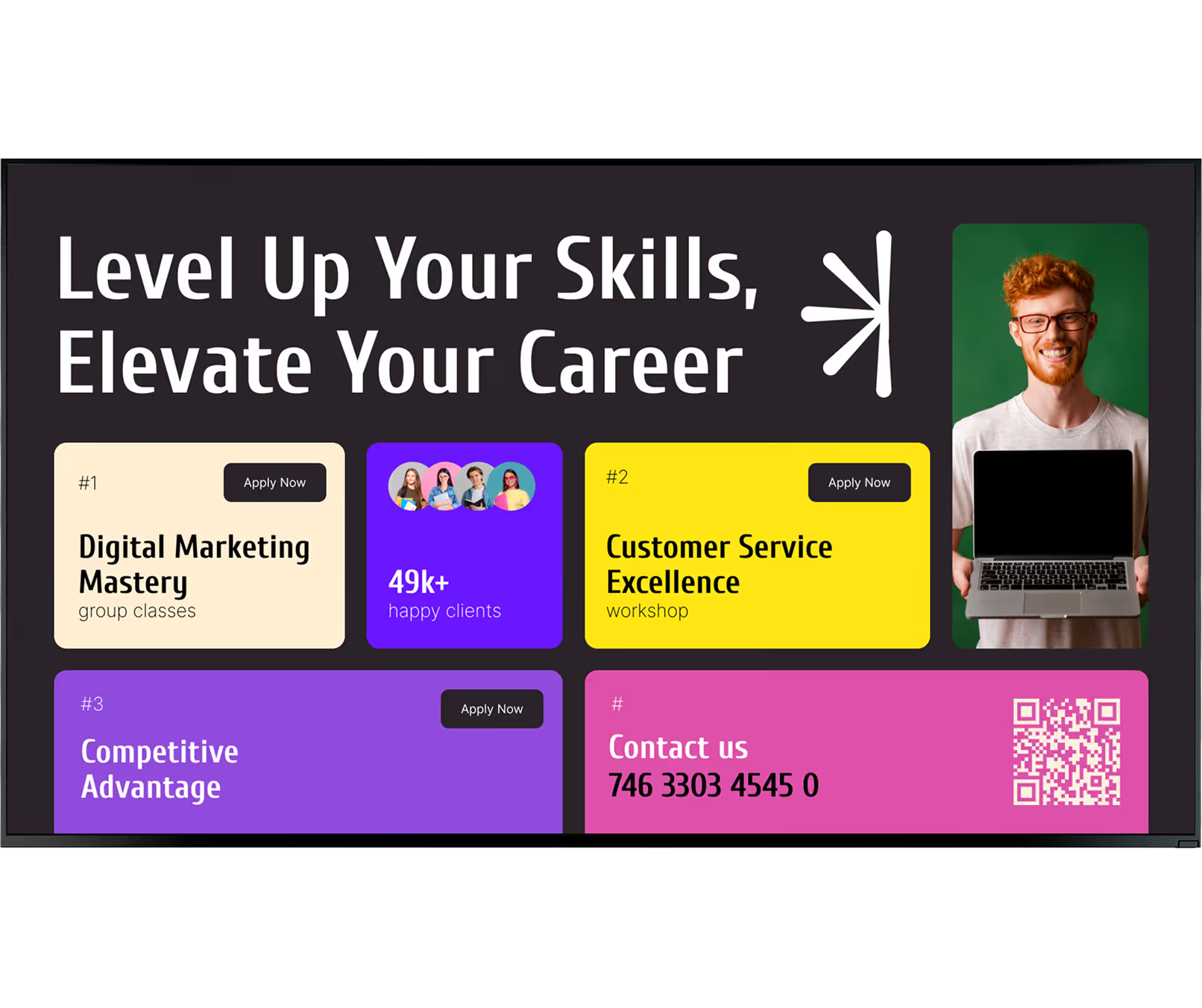
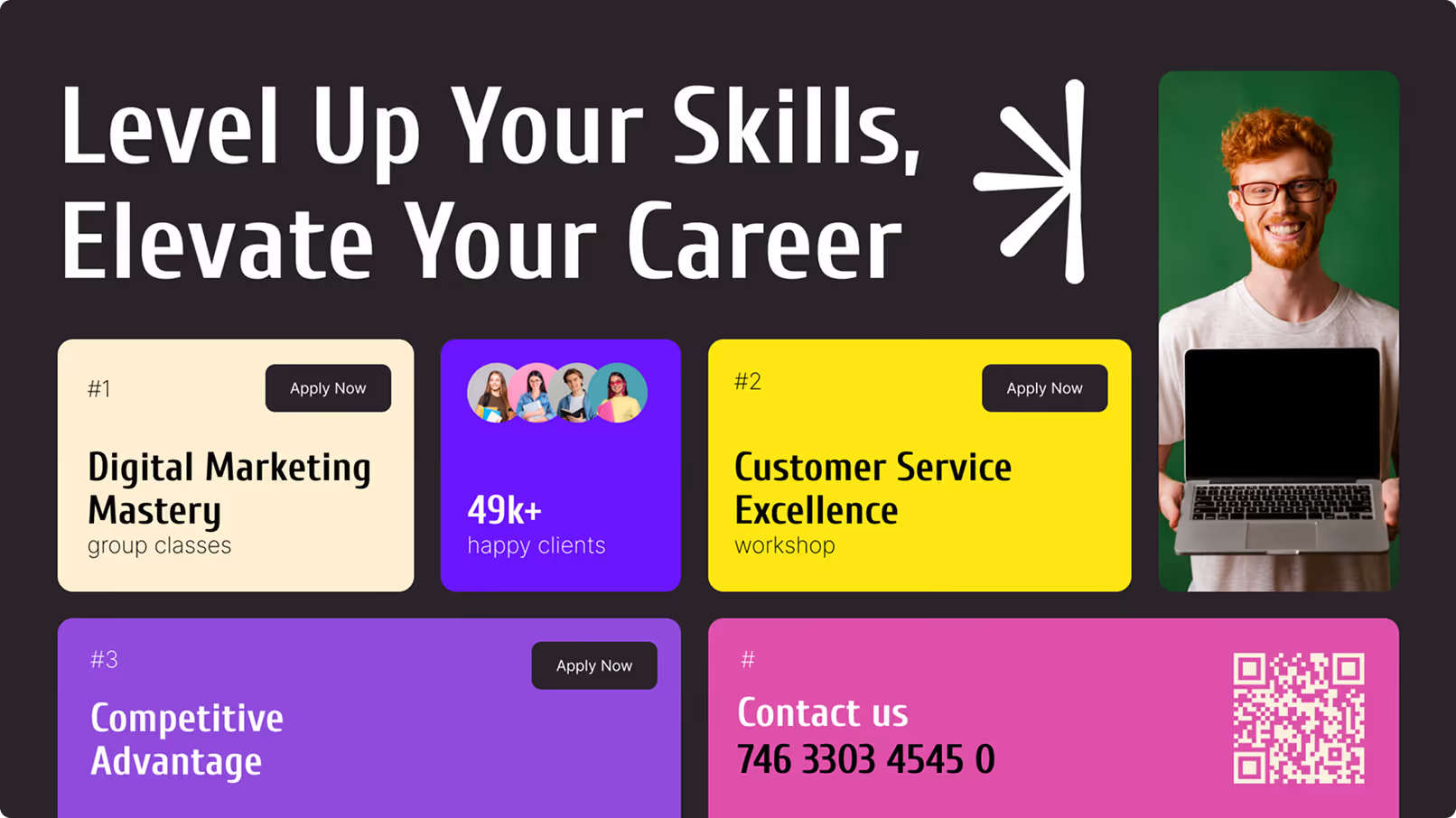
Course ad with man holding laptop and classes on digital marketing, customer service, and competitive advantage.

Using the same generic content on all screens

Sending identical content to every screen across the building misses the opportunity to make signage genuinely useful. Teams stop paying attention to messages that are not relevant to them, and the screens become background noise.

Fix: Use CMS targeting and Smart Scheduling to personalize content by department and floor. Sales corridors show KPIs; engineering areas show project updates; reception shows visitor welcomes.

Skipping the pilot phase entirely

Rolling out digital signage across all rooms in one go before testing calendar sync, template customization, and device reliability creates a stressful implementation. Issues that could have been caught in a two-room pilot end up affecting the whole floor.

Fix: Start with a 2–3 room pilot. Use it to test calendar sync, gather feedback from IT and facilities, and fine-tune templates before scaling to the full building.
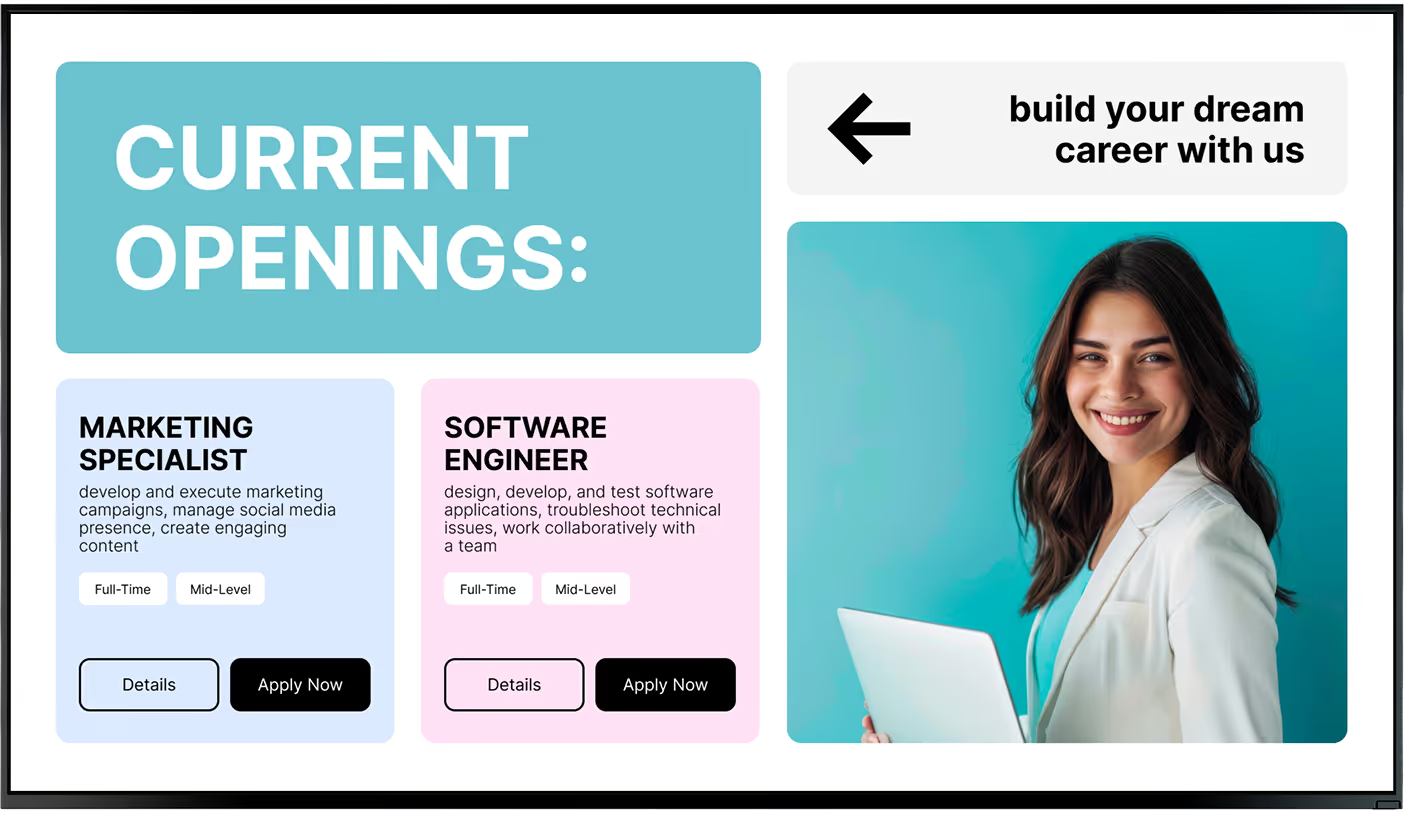
Job openings for marketing specialist and software engineer with apply buttons and a smiling woman holding a laptop.

Testimonials

Teams that transformed their meeting room management

Captera Rating
4.9
G2 Rating
5

In terms of using the system, the other options that I found were a little clunky and Look was not only affordable but really easy for us to deploy and get up and running.

Michael Bowers
Xtreme Express LLC

Look is well-priced, it’s a very user-friendly software cloud-based service, where you can update your screens from wherever you are. We can definitely recommend to others!

Jonathan Florin
Florin Partners

Our experience with Look was simply excellent. We were able to offer our clients a new feature-rich solution that can meet their various requirements in terms of digital signage, with a relatively affordable monthly cost.


Bruno Sabatella
Feedback
60 000+
Screens
11 000+
Users
120+
Countries

FAQ

Frequently asked questions

What types of rooms benefit from digital signage most?

Any shared space benefits, but rooms with high turnover — like huddle rooms, boardrooms, and multi-purpose spaces — see the biggest improvements. These areas usually have the most booking conflicts, so clear, real-time status updates help immensely. Flexible workspaces and hot-desks also benefit from smaller displays that make ad-hoc booking easy in busy offices.

Is it possible to display emergency messaging on room signs?

Yes. Most modern platforms can link with emergency notification tools. During an emergency, the system overrides normal schedules to display safety instructions or evacuation routes on every screen in the building. This ensures everyone sees critical information immediately — including people inside closed or soundproof rooms on the in-room displays. This capability is often a required part of safety and compliance plans in larger buildings.

Does meeting room signage work with Microsoft Teams Rooms and Google Workspace?

Yes. Modern signage tools work closely with workspace platforms like Microsoft Teams Rooms and Google Workspace. The integration keeps the booking experience smooth and consistent, whether staff use their laptop, a mobile app, or the panel outside the door. Two-way sync means any change made on the room screen also pushes back to the user's digital calendar instantly.

What hardware options are available for meeting room signs?

The main options are touchscreen room signs (tablet-sized, powered via PoE, with LED status strips), e-ink displays (battery-powered for months, wireless, ideal for glass walls), and larger in-room LCD or LED panels that double as signage when meetings are not in use. Key factors when choosing include screen brightness, viewing angles, durability, and whether you need interactive booking features or just a status display.

How do you personalize signage content for different teams or events?

Personalization is handled right inside the CMS. Using Smart Scheduling, admins can create tailored playlists for specific screens. For a board meeting, the screens in that hallway can welcome guests with their company logo and event details. For daily operations, different departments can see their own KPIs or local updates, ensuring the content is always relevant to the viewer.

Can non-technical staff manage the screens?

Yes. Digital signage is built so non-technical staff can run it easily. Most daily updates happen automatically from the calendar system. Admins can change screen layouts, push new content, and check device uptime from one cloud dashboard without visiting screens in person. Ready-made Templates mean anyone can create professional content without starting from scratch or needing design skills.

How do I get started with a meeting room rollout?

Most providers let you try the software before you commit. Book a demo or start a free trial with Look Digital Signage to test calendar sync, explore the templates, and see the central dashboard for yourself. Starting with a small pilot in just two or three rooms is the best approach — it lets your IT and facilities teams learn the system before rolling it out to the entire building. Once hardware is connected, link the CMS to your calendar system, customize templates, and share a quick update with your team so everyone knows how to use the new setup.

What is the best digital signage software for meeting and conference rooms?

For meeting rooms, calendar integration, live room availability displays, and real-time booking updates are essential to stop the classic "is this room actually free?" standoff. Read more in the best digital signage software for meeting & conference rooms.

Still have questions?

Our team has helped IT managers and facilities teams at companies of all sizes get their first room sign live — from a 3-room pilot to a 500-screen global campus rollout.

Talk to Our Team

Or browse the knowledge base for technical documentation and setup guides.

Templates

Ready-made templates for every meeting room screen

Skip the blank canvas. Look DS includes a library of templates built specifically for meeting room and conference environments — daily agendas, room status displays, visitor welcome screens, corridor booking summaries, and company announcement slides. Designed for landscape office screens and ready to brand in minutes.

Admins can quickly pick a template, customize the colors and fonts, and publish it to specific screens. This simple setup lets anyone create professional content without starting from scratch — no design background required.
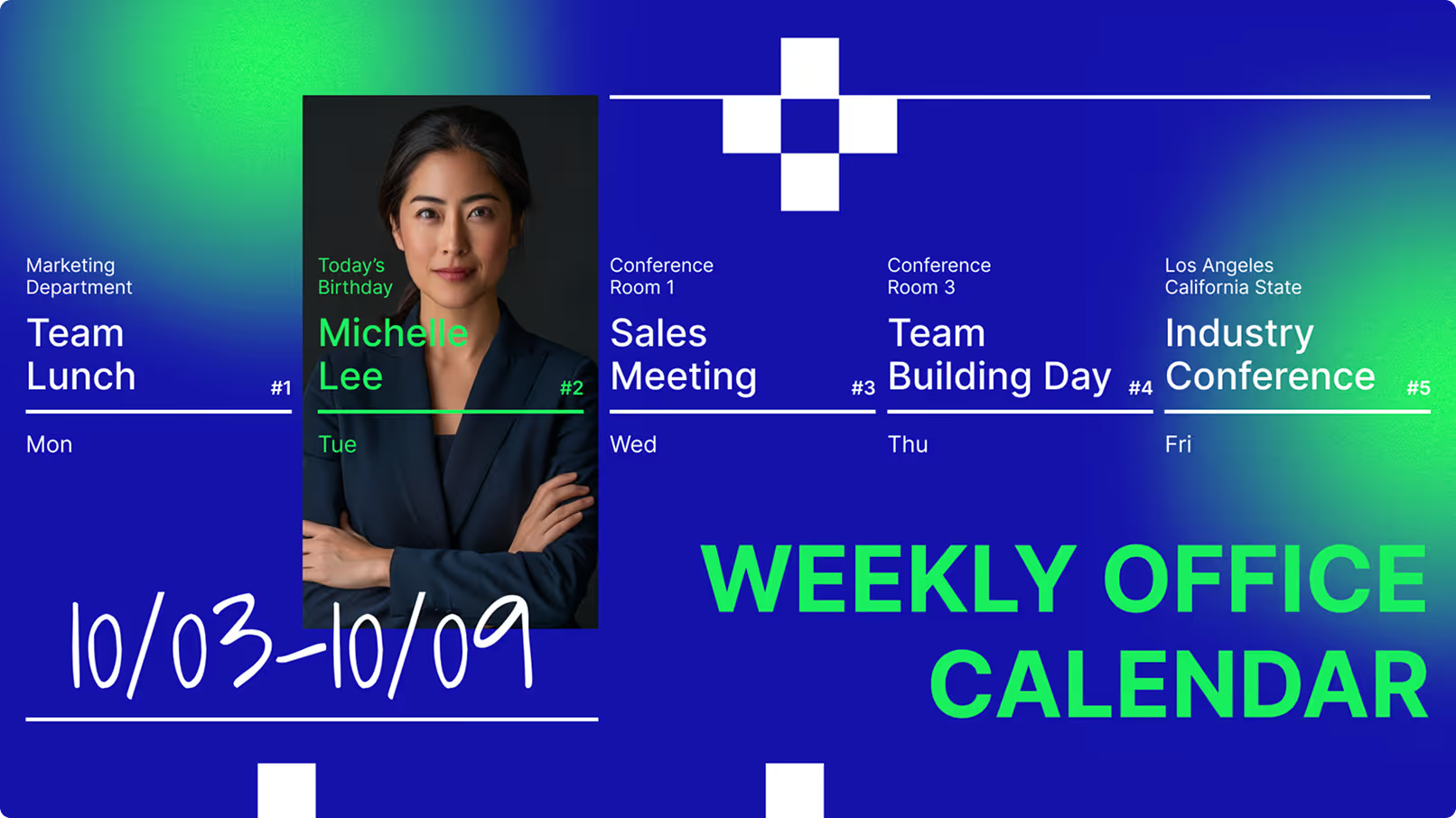
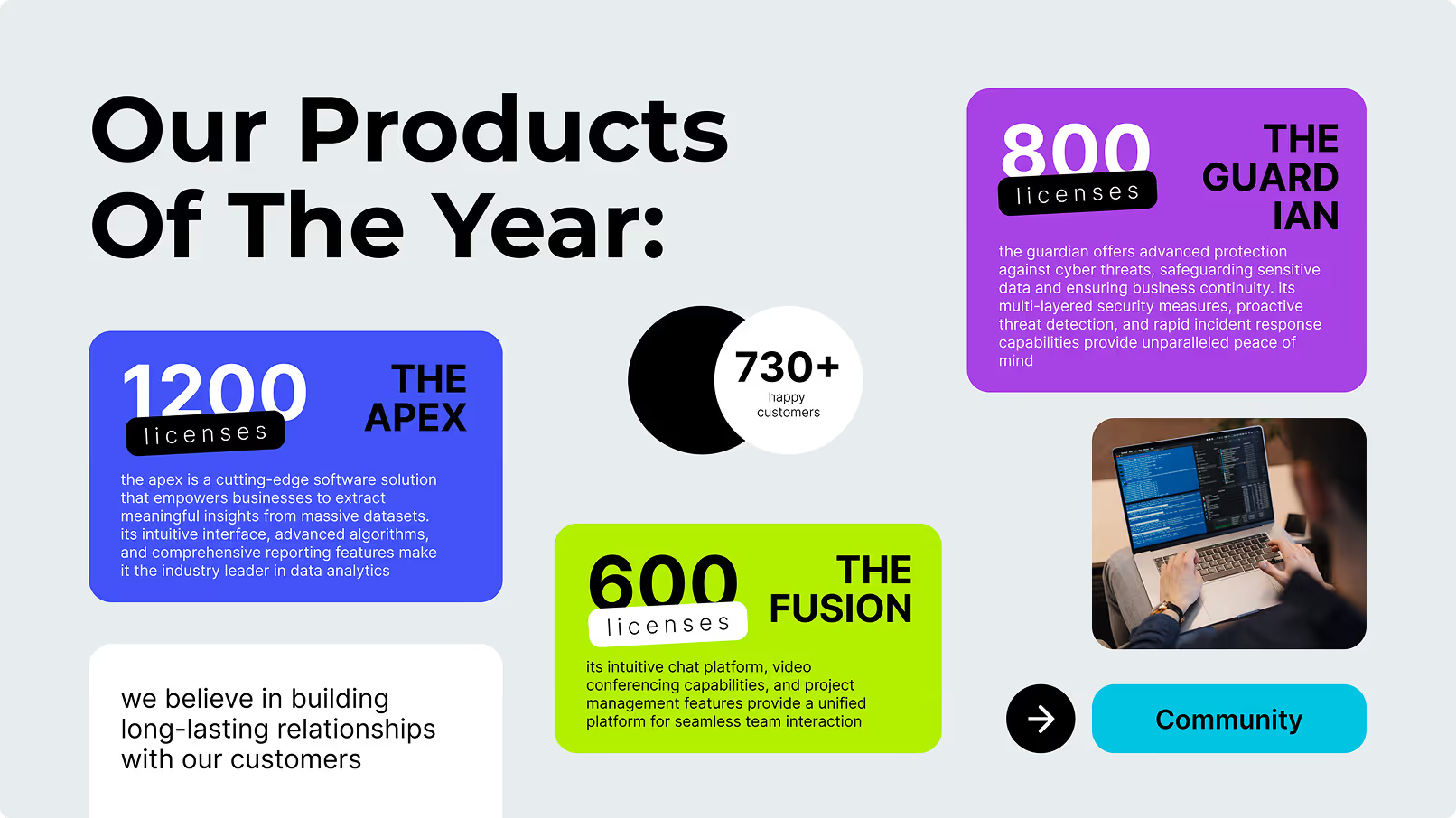
Weekly office calendar with events including team lunch, birthday, sales meeting, team building, and industry conference.Meeting room schedule showing four rooms with photos, capacity, and 'View Schedule' buttons.Infographic showing three software products with licenses: 1200 The Apex, 800 The Guardian, 600 The Fusion.
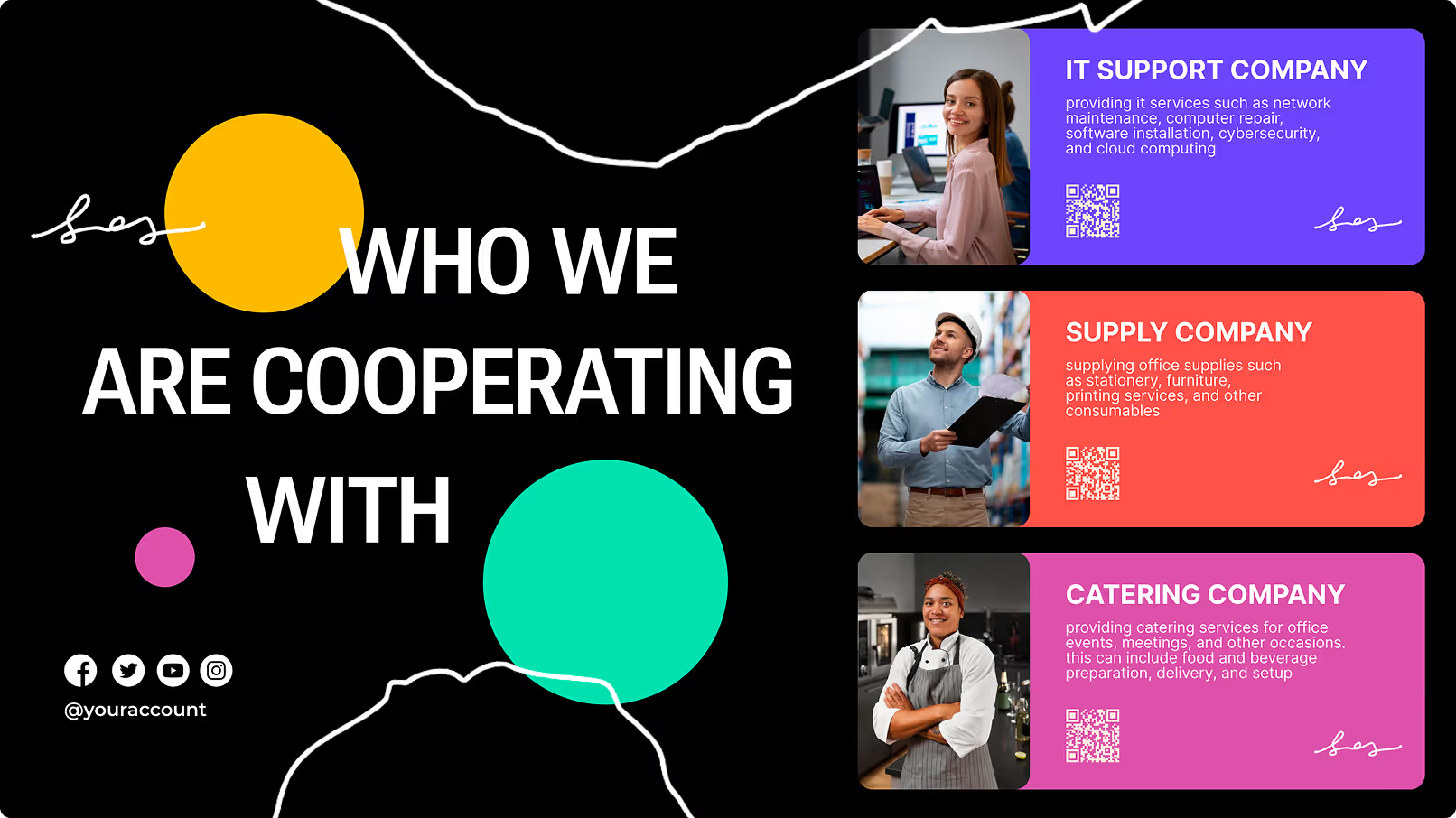
Meeting room schedule showing four rooms with photos, capacity, and 'View Schedule' buttons.Infographic showing three software products with licenses: 1200 The Apex, 800 The Guardian, 600 The Fusion.Three company cards showing IT support, supply, and catering services with representative photos.
Infographic showing three software products with licenses: 1200 The Apex, 800 The Guardian, 600 The Fusion.Three company cards showing IT support, supply, and catering services with representative photos.Job openings for Marketing Specialist and Software Engineer with apply buttons, beside smiling woman with laptop.
Three company cards showing IT support, supply, and catering services with representative photos.Job openings for Marketing Specialist and Software Engineer with apply buttons, beside smiling woman with laptop.Text about skill-building courses with a smiling red-haired man holding a laptop on green background.
Job openings for Marketing Specialist and Software Engineer with apply buttons, beside smiling woman with laptop.Text about skill-building courses with a smiling red-haired man holding a laptop on green background.Five people smiling in a meeting, skincare product images, text about superior products and contact info.
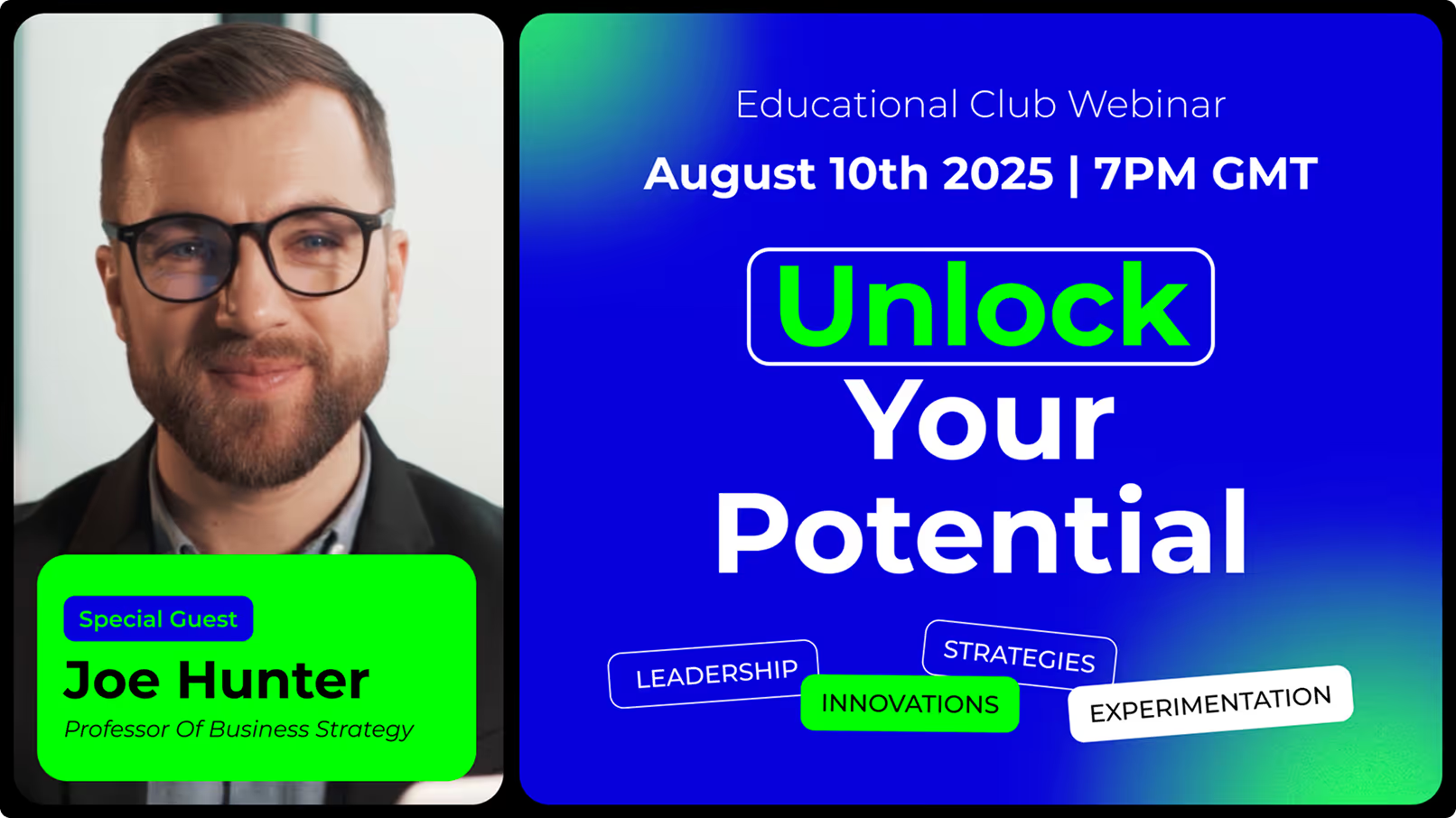
Text about skill-building courses with a smiling red-haired man holding a laptop on green background.Five people smiling in a meeting, skincare product images, text about superior products and contact info.Webinar promo showing Joe Hunter, professor, with title Unlock Your Potential on August 10, 2025, 7PM GMT.
Five people smiling in a meeting, skincare product images, text about superior products and contact info.Webinar promo showing Joe Hunter, professor, with title Unlock Your Potential on August 10, 2025, 7PM GMT.Weekly office calendar with events including team lunch, birthday, sales meeting, team building, and industry conference.
Webinar promo showing Joe Hunter, professor, with title Unlock Your Potential on August 10, 2025, 7PM GMT.Weekly office calendar with events including team lunch, birthday, sales meeting, team building, and industry conference.Meeting room schedule showing four rooms with photos, capacity, and 'View Schedule' buttons.